
Fix a Blurry Screenshot and Read the Text Again
Clean up a compressed or downscaled screenshot so menus, messages and error text can be read without guessing.
Add a photo
Drop it here, or click to browse.
Free on this device. Nothing is uploaded.
- Free on this device
- Never rewrites letters
- Swin2SR in Pro
- Credits only on success
- No watermark
A screenshot starts out pixel-perfect. It becomes blurry later, when a chat app compresses it, a website shrinks it, or someone photographs a screen instead of capturing it. This page opens the blurry-text tool for that situation. It explains what typically damaged the image, when a fresh capture is the better fix, how to judge easily confused characters, and which format keeps text crisp. Free mode runs in your browser with nothing uploaded, which matters for screenshots of private chats or account pages. Pro mode uses Swin2SR for very small or heavily compressed captures.
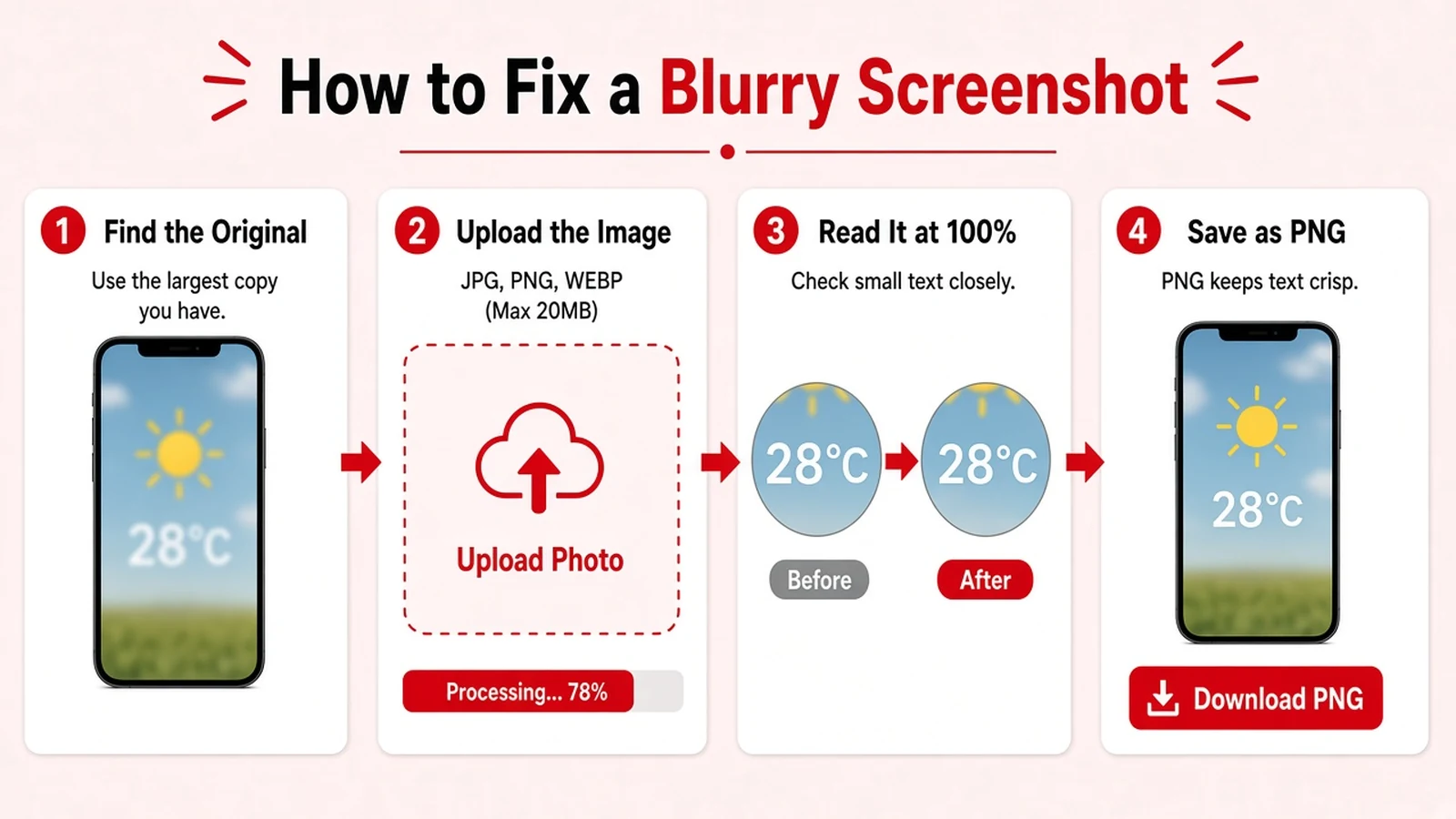
How to fix a blurry screenshot in 4 steps
1. Look for the original
Ask the sender for the file or retake the capture if you still can.
2. Crop and upload
Trim to the text you need; PNG or JPG both work.
3. Read at 100%
Check look-alike characters such as 0 and O, 1, l and I.
4. Save as PNG
PNG keeps sharp text edges without new compression.
What the fix a blurry screenshot tool does
Built for UI text
Firms up thin strokes of system fonts and menus.
Reduces JPEG blocks
Smooths the square artefacts chat apps add.
No invented characters
Strengthens what is there instead of predicting words.
Swin2SR in Pro
Extra clarity for tiny or repeatedly forwarded images.
Private in Free mode
Screens with messages or account data stay local.
Slider and 100% view
Verify each word before you rely on it.
Who uses it
Forwarded chat screenshots
Images recompressed every time they are shared.
Bug reports and support
Error messages that arrive too small to read.
Saved social posts
Text posts downscaled by an app or website.
Slides and webinars
Captures of a shared screen at low resolution.
Free vs Pro: what you pay for
Free · on this device
No account, no upload
- Unlimited runs on this device, no account
- The photo is never uploaded
- No watermark on the download
- Before/after slider and 100% view
Credits · Pro AI
When the screenshot is tiny or forwarded many times
- Pro run with Swin2SR: 1 credit, charged only when the job succeeds
- Signed out: one free Pro try per browser per day
- Free account: 5 Pro credits every week
- Packs from $4.99 for 60 credits, or Plus at $9.99/month for 300
Why screenshots lose sharpness
A screenshot is a direct copy of screen pixels, so text is as sharp as it was on the display. The damage happens afterwards, and knowing which kind you have tells you how much can be fixed.
| Cause | What you see | How much can be fixed |
|---|---|---|
| Chat app compression | Blocky halos around letters | Usually a lot |
| Downscaling by a website | Thin, greyish text | Often readable again |
| Forwarded many times | Smears and colour fringes | Partly; depends on size |
| Photo of a screen | Moiré patterns, glare, tilt | Limited; retake as a real capture |
| Low-resolution screen share | Soft text in a video frame | Partly, if letters are separable |
Try the simple fixes first
The best repair is often not a repair. If the screenshot is your own, capture it again. If someone sent it, ask for the original file or for it to be sent as a document rather than a photo; many chat apps compress photos but leave documents untouched. On a computer, zoom the page before capturing so small text is drawn with more pixels.
Capture shortcuts
- Windows: Win + Shift + S for a region, or PrtScn.
- macOS: Cmd + Shift + 4 for a region, Cmd + Shift + 3 for the full screen.
- Android: usually Power + Volume down.
- iPhone: side button + Volume up, or the Home button on older models.
Judge look-alike characters
Even a cleaned-up screenshot can mislead you when letters are small. Read anything important, such as codes, links, amounts and names, in context, and double-check characters that look alike: 0 and O, 1, l and I, rn and m, 5 and S. If a code or password is involved, do not rely on a repaired image at all; ask for the text itself.
PNG or JPG for screenshots
Screens are made of flat colour and hard edges, which PNG stores perfectly and JPG blurs. Save the fixed screenshot as PNG when you need crisp text. JPG is fine when the screenshot is mostly a photo, or when an upload form insists on it; use high quality to avoid new halos.
Privacy
Screenshots often show names, messages, emails and account numbers. In Free mode the image is processed in your browser and never uploaded. Before sharing a fixed screenshot, crop or blur personal details that the recipient does not need; the free blur tool does that in a few seconds.
Screenshots shared through apps
A screenshot that looked perfect on your phone can arrive blurry on someone else’s. Messaging apps, social networks and some email services shrink and recompress images to save data, and text suffers first because its sharp edges are hard to compress.
- Send screenshots as a file or document attachment when the app offers it, which usually avoids recompression.
- Crop to the part that matters before sharing, so the text stays larger after any resize.
- If you received a soft screenshot, ask for the original file before trying to repair it.
- For long pages, take several screenshots instead of one zoomed-out capture.
When the original is gone, Fix blurry text can tidy compression smudges around letters. It works best when the text is at least several pixels tall in the received image.
Screenshots as records
Screenshots are often kept as proof: a booking confirmation, a payment, a conversation. Keep the received file untouched alongside any enhanced copy, and note the date you captured it. An enhanced copy is easier to read, but the original is what shows the screen as it was.
Dark mode and small fonts
Light text on a dark background loses legibility faster under compression than dark text on white, because the thin bright strokes blur into the surrounding dark pixels. If you know a screenshot will be shared or printed, switching the app to light mode and increasing the font size before capturing gives the cleanest result. Zooming the page in before you take the screenshot has the same effect: larger letters survive resizing far better than tiny ones.
Written and tested by the EnhancerPro team. Last updated 2026-10-14.
Frequently asked questions
Related tools
Try it on your own photo
Start free on this device. Use Pro credits only when a photo needs the AI model, and only pay for runs that succeed.