
Make a Blurry or Faded Receipt Readable
Sharpen the text on a shaky or faded receipt photo so totals, dates and merchant details can be read and filed.
Add a photo
Drop it here, or click to browse.
Free on this device. Nothing is uploaded.
- Free on this device
- Never rewrites letters
- Swin2SR in Pro
- Credits only on success
- No watermark
Receipts are small, crumpled, printed on paper that fades, and usually photographed in a hurry. That is a hard combination for any image, and the stakes are real when the photo is what you submit for an expense claim or keep for tax records. This page opens the blurry-text tool for receipts. It sharpens the letters that are already there and never rewrites characters, so what you read is what was printed. You will also find capture tips that prevent most blur, why thermal paper fades and what to check before you file the image. Free mode runs on your device; Pro mode uses Swin2SR for small or heavily compressed photos.
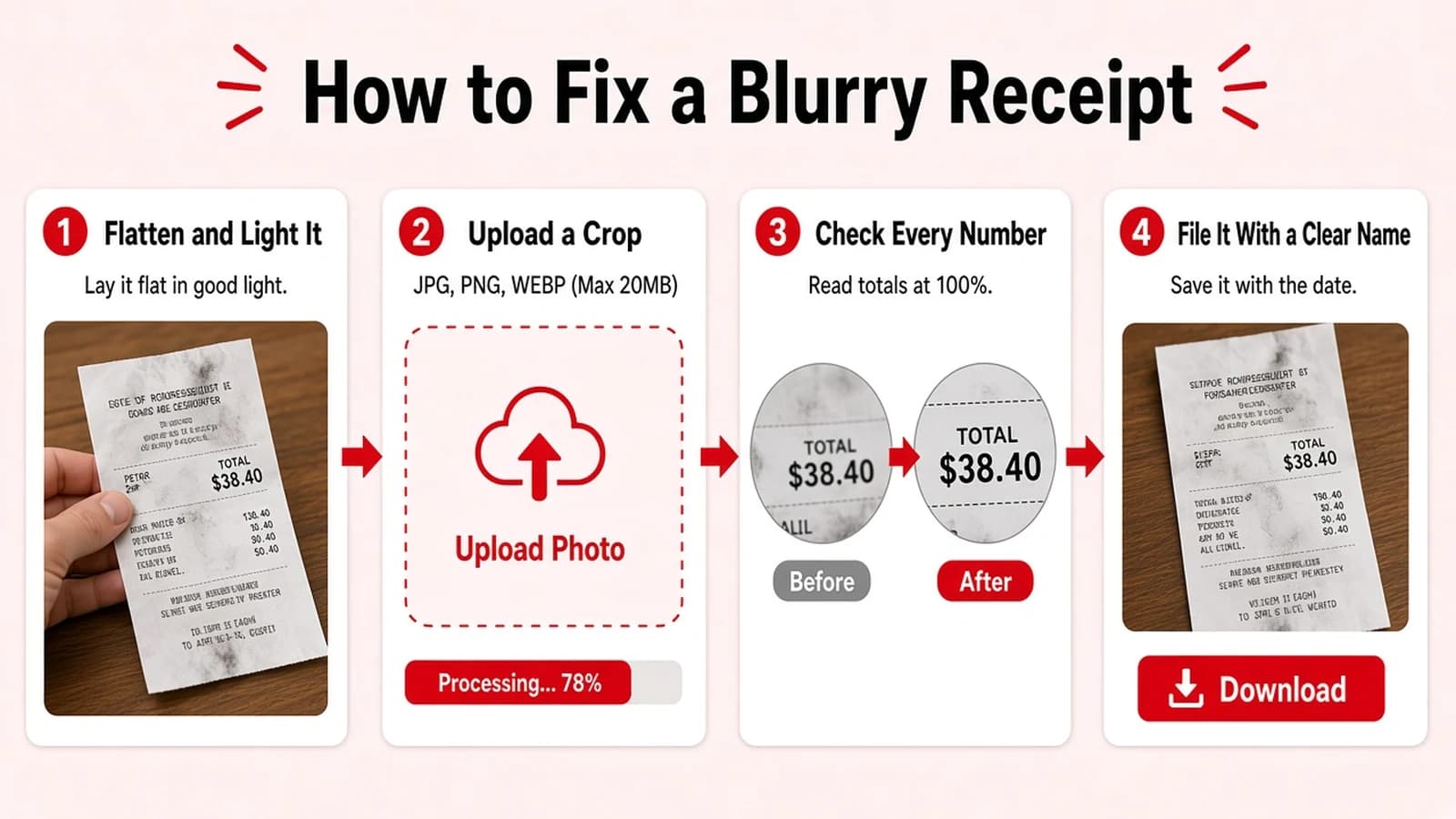
How to make a receipt readable in 4 steps
1. Flatten and light it
Lay the receipt flat on a dark surface under even light, no flash.
2. Crop and upload
Crop close to the paper so the tool works on the text only.
3. Check every number
Compare total, date and tax number against the paper.
4. File it properly
Save as JPG or PDF with the date and merchant in the file name.
What the make a blurry receipt readable tool does
Readable, not rewritten
Strengthens existing strokes; no model guesses new characters.
Handles mild shake
Recovers edges from slight motion blur and soft focus.
Contrast for faded print
Lifts pale thermal text away from the paper tone.
Swin2SR in Pro
Extra clarity for small, compressed or distant shots.
Private records
Free mode keeps receipts with card details on your device.
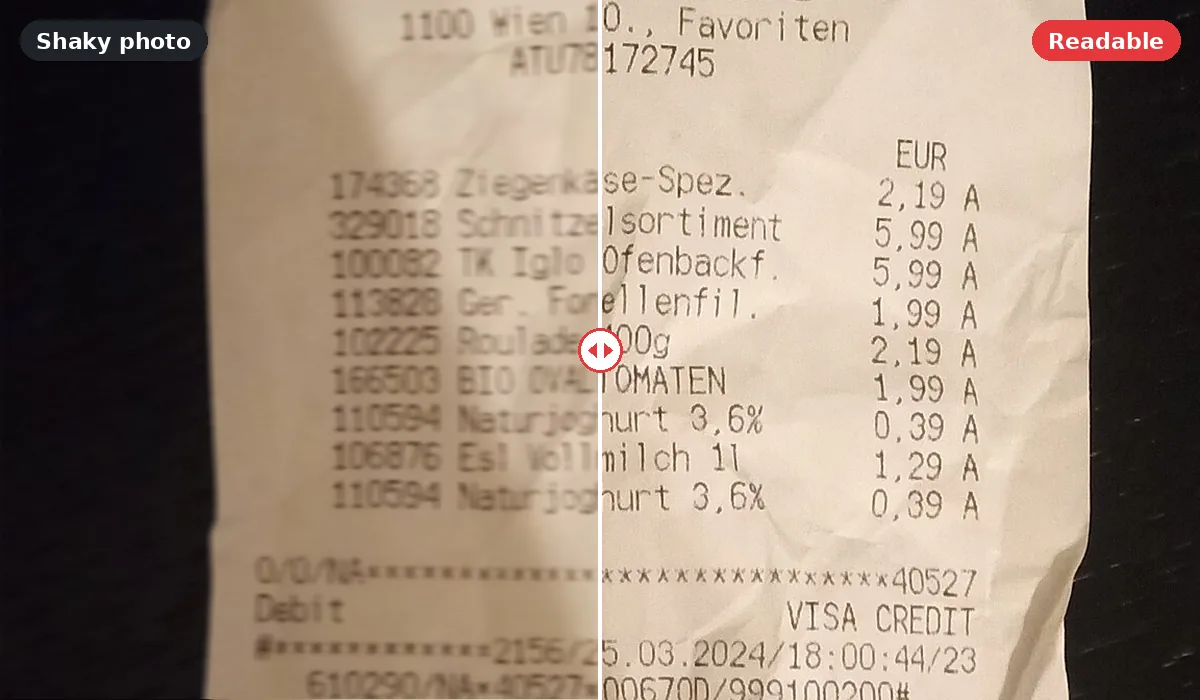
Before/after slider
Confirm the digits did not change shape.
Who uses it
Expense claims
Receipts that a finance team rejects as unreadable.
Tax and bookkeeping
Records that need to stay legible for years.
Warranty and returns
Proof of purchase for appliances and electronics.
Shared costs
Splitting a bill with friends or flatmates.
Free vs Pro: what you pay for
Free · on this device
No account, no upload
- Unlimited runs on this device, no account
- The photo is never uploaded
- No watermark on the download
- Before/after slider and 100% view
Credits · Pro AI
When the receipt photo is tiny or compressed
- Pro run with Swin2SR: 1 credit, charged only when the job succeeds
- Signed out: one free Pro try per browser per day
- Free account: 5 Pro credits every week
- Packs from $4.99 for 60 credits, or Plus at $9.99/month for 300
Why receipt photos come out blurry
Phones focus on the highest-contrast thing in view, and a pale receipt on a pale table gives them little to lock onto. Add low indoor light, which slows the shutter, and a hand-held shot at arm’s length, and small text smears easily. Curled paper adds another problem: part of the receipt is closer to the lens than the rest, so only a strip is in focus.
Capture tips that prevent most blur
- Put the receipt on a dark, plain surface so the camera can find its edges.
- Flatten it under the edges of a book or a ruler rather than holding it.
- Use daylight or a desk lamp from the side; flash bounces off glossy paper.
- Hold the phone parallel to the paper and tap on the text to focus.
- Take two shots; one of them is usually sharper.
- For long receipts, photograph the top and bottom separately instead of from far away.
Thermal paper fades
Most till receipts are printed on thermal paper, which darkens with heat rather than ink. Light, heat and contact with plastic or hand cream can make that text fade over months, and some receipts become almost blank. The practical lesson is to photograph receipts soon after purchase. If one has already faded, the tool can raise contrast on what remains, but it cannot restore characters that are no longer on the paper.
What to check before you file the image
A readable receipt is only useful if the details are right. Compare the processed image with the paper, especially the characters that are easy to confuse.
| Field | Why it matters | Easy mistakes |
|---|---|---|
| Total and tax | The amount you claim or record | 8 vs 3, 5 vs 6, misplaced decimal |
| Date and time | Matches the claim period | 1 vs 7 in day or month |
| Merchant name and address | Shows where you spent | Logos printed faintly |
| Tax or VAT number | Needed for some business claims | 0 vs O, missing digits |
| Last card digits | Links to your statement | Partly masked by design |
Honest processing for records
The text tool sharpens and adds contrast to strokes that exist; it does not use a model that predicts characters. That matters for anything financial. Do not edit amounts or dates, keep the original photo with the processed one, and check your employer’s or tax authority’s rules on digital copies, which vary by country and by organisation.
Saving and organising receipts
JPG is fine for most expense apps. Save a PDF if your finance team asks for one; the free JPG to PDF tool combines several receipts into a single file. A consistent file name, such as 2026-10-14-cafe-12.40.jpg, makes a folder of receipts searchable without any special software.
Common receipt problems and what to expect
| Problem | Cause | What helps | Expectation |
|---|---|---|---|
| Soft, slightly blurred print | Hand shake or close focus | Fix blurry text | Usually becomes readable |
| Pale grey print | Thermal paper fading | Fix blurry text after an even, bright photo | Partly recoverable; very faded digits may stay unclear |
| Shiny streak across totals | Glossy paper and overhead light | Remove glare, or reshoot at an angle | Good if the text under the glare was captured |
| Curled long receipt | Paper roll memory | Flatten under a book, photograph in sections | Sections stay sharper than one distant shot |
If a key figure is still uncertain after enhancement, ask the shop for a duplicate or check your card statement rather than guessing.
Written and tested by the EnhancerPro team. Last updated 2026-10-14.
Frequently asked questions
Related tools
Try it on your own photo
Start free on this device. Use Pro credits only when a photo needs the AI model, and only pay for runs that succeed.