
Image to Text Converter: Free OCR in Your Browser
Pull editable text out of screenshots, scans and photos, then copy it or save it as a text file, all on your own device.
- Runs in your browser
- No upload, no account
- Free and unlimited
- 15 languages
- Copy or download .txt
This free image to text converter reads the words in screenshots, scanned pages, receipts and photos of signs, then gives you plain text to copy or download. It uses an open-source OCR engine that runs in your browser, supports 15 languages including Urdu, Arabic, Hindi and Chinese, and handles up to 20 images at once. Nothing is uploaded.
How to extract text from an image
1. Add images
Drop screenshots or photos, browse, or paste with Ctrl+V.
2. Pick languages
Choose up to three languages that appear in the image.
3. Extract
Press Extract text and watch the progress bar.
4. Copy or save
Edit if needed, then copy or download a .txt file.
What this free tool does
15 languages
Latin, Arabic, Devanagari, Chinese, Japanese and Korean scripts.
Mixed languages
Combine up to three languages in one pass.
Multiple images
Read up to 20 pictures and get one combined text.
Confidence score
See how sure the engine is about each result.
Edit, copy, download
Fix small errors, then copy or save as .txt.
Private OCR
The engine and language data run on your device.
Who uses it
Screenshots
Grab text from apps and videos that do not allow copying.
Receipts and notes
Turn paper into editable text you can search.
Study and research
Quote printed pages without retyping.
Work documents
Reuse text from scanned letters and forms.
Free vs Pro: what you pay for
Free · this tool
Image to Text Converter
- Unlimited text extraction
- Runs in your browser, no upload
- Up to 20 images at a time
- No account, no credits used
Pro credits · Pro AI tools
Enhance, upscale, restore
- Credits are only for Pro AI processing
- 5 free Pro credits every week with an account
- Charged only when a job succeeds
- Format tools like this one stay free
What is OCR?
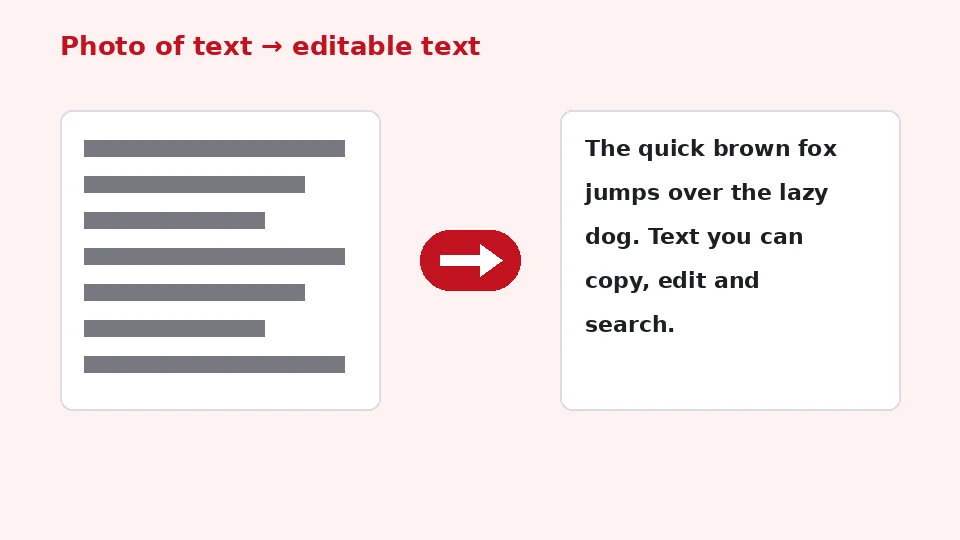
OCR, short for optical character recognition, is the technology that turns pictures of letters back into text you can select, search and edit. It looks for lines, splits them into words and characters, and compares their shapes with patterns learned from millions of examples. Modern engines use neural networks that read whole lines at once, which makes them much better with varied fonts.
This page uses Tesseract, a long-running open-source OCR engine, compiled to WebAssembly so it runs inside your browser. The engine and the language files are downloaded the first time you press Extract text and then cached, so later visits start faster.
Faster than typing
When comparing OCR vs retyping, OCR wins on anything longer than a sentence or two. Even if you correct a few characters afterwards, it is much faster than typing a page by hand, and it never skips a line.
How to use the image to text converter
Add one or more images by dragging them onto the box, browsing, or pasting a screenshot straight from the clipboard. Select the languages that appear in the picture; English is selected by default. Press Extract text. A progress bar shows the engine loading and then reading each image.
When it finishes, the text appears in a box where you can make corrections. Use Copy all text to paste it elsewhere, or download a .txt file. Each image also has its own TXT button, and multiple images are joined with their file names as headings.
Screenshots in two clicks
To copy text from a screenshot, press your system's screenshot shortcut, then click this page and press Ctrl+V or Cmd+V. The image is added immediately, so you can extract the text in two clicks.
Languages and scripts
Choosing the right language matters more than anything else. The engine uses language data to recognise characters and common words, so reading French with English data will miss accents. You can pick up to three languages for documents that mix them, such as English and Urdu on the same form.
Right-to-left scripts like Arabic and Urdu are supported, and the text box follows the direction of the text automatically. For Chinese, Japanese and Korean, the language data is larger, so the first run takes a little longer.
Photographing pages
To extract text from photo of a document, hold the phone parallel to the page, avoid shadows and glare, and fill the frame with the text. A straight, evenly lit photo can be almost as accurate as a scanner.
Getting accurate results
Resolution and contrast
OCR works best with sharp, high-contrast text at a reasonable size. Screenshots are usually excellent. For photos, letters should be at least 20 pixels tall; if they are tiny, zoom in or crop the area before converting. Dark text on a light background gives the best results.
Fix blurry or faint text first
If the picture is blurry, low resolution or faded, recognition suffers. That is where our AI blurry text tool helps: it sharpens and cleans up the lettering in Pro mode, and you can then run the improved picture through this free converter. The two tools do different jobs: one improves how text looks, the other turns it into editable characters.
Handwritten notes
Handwriting recognition is limited. Neat block capitals often work, but joined handwriting usually produces errors, because the engine is trained mainly on printed text. Treat results from handwritten notes as a starting point to correct.
Privacy and devices
Many online OCR services upload your image to a server. Here the engine runs in your browser, so receipts, IDs, contracts and medical letters never leave your device. The only downloads are the engine itself and the language files, served from our own site.
It works on recent versions of Chrome, Edge, Firefox and Safari on computers and phones. For image to text on iPhone, open the page in Safari, tap the drop area and pick a photo or screenshot. On older phones, large images take longer, so crop them to the text you need.
Limits and tips
Each run can read up to 20 images, each up to 50 MB. The tool reads JPG, PNG, WebP, GIF and BMP files. For PDFs, convert the pages to images with our PDF to JPG tool first. Tables come out as lines of text rather than cells, and complex layouts with several columns may need tidying.
The tool is free and unlimited, adds no watermark and does not use EnhancerPro credits. Whatever you extract stays in your browser until you copy or download it.
Keeping notes
Once text is extracted, you can paste it into a notes app, a spreadsheet or a translation tool. Saving receipts and handouts as searchable text is much easier than scrolling through photos later.
Practical ways to use extracted text
Translate printed text
Extract the text of a sign, menu or letter in a foreign language, then paste it into your favourite translation app. Because the text is now characters rather than pixels, translations are faster and you can copy exactly the part you need.
Quote from books and slides
Students and researchers often need a paragraph from a printed book or a lecture slide. Photograph the page, extract the text, and correct any small errors. Remember to cite the source as you would with any quotation.
Data from forms and tables
Extracted tables arrive as lines of text with spaces between columns. Paste them into a spreadsheet and use its text-to-columns feature to split the values. For long numeric tables, check the totals afterwards, since a single misread digit can change a result.
Accessibility
Text in images cannot be read by screen readers. Extracting it lets you add a proper description or caption when you share a picture, and it makes posters and flyers accessible to more people. It also lets you change the font size and contrast of text that was hard to read in the original picture.
Archiving
Keep the original image alongside the extracted text. The picture remains the authoritative copy, while the text makes it easy to find. Naming the text file after the image keeps the two together.
Checking the result
The confidence score next to each image is a quick quality signal. Scores above about 85 percent usually mean clean text with few errors; lower scores suggest you should read the result carefully. Common confusions are the letter O and the digit zero, the lowercase l and the digit one, and punctuation near the edges of the picture.
If many words are wrong, try a sharper or larger image, crop out unrelated areas such as photos or logos, and make sure the right languages are selected. Rotating a sideways scan upright with our rotate tool also helps, because the engine reads horizontal lines most reliably.
Privacy for sensitive papers
Bank letters, prescriptions and identity cards often contain details you would not want stored on someone else's server. Because recognition happens locally, you can extract what you need, such as a reference number or an address, without the picture ever leaving your device. When you share the result, copy only the lines that are needed and leave the rest out, and consider blurring private parts of the original image before sending it to anyone.
Frequently asked questions
Related tools
Need sharper, bigger or restored photos?
Our AI tools enhance, upscale and repair images for free on your device, with optional Pro AI processing on credits.