
Rotate Image Online: Turn, Flip and Fix Photos
Turn sideways photos upright, mirror pictures or set any angle, in bulk and without uploading anything.
Drop image files here, or click to choose
JPG, PNG or WebP · up to 50 files · 50 MB each · Ctrl+V to paste · nothing is uploaded
Current: 0°. Phone photos are straightened from their EXIF orientation automatically.
- Runs in your browser
- No upload, no account
- Free and unlimited
- No watermark
- Batch + ZIP download
Use this tool to rotate image online for free, right in your browser. Add one photo or a whole batch, turn it 90 degrees left or right, 180 degrees or any custom angle, flip it horizontally or vertically, and download files in their original format. Phone pictures that show up sideways are straightened automatically, and nothing is uploaded.
How to rotate an image in four steps
1. Add photos
Drop JPG, PNG or WebP files, browse, or paste with Ctrl+V.
2. Choose the turn
Rotate left, right or 180°, type any angle, or flip either way.
3. Check the preview
Thumbnails turn instantly so you can confirm the result.
4. Save
Apply, then download single files or everything as a ZIP.
What this free tool does
90°, 180° and custom
Quarter turns or any angle to the half degree.
Flip both ways
Mirror horizontally, vertically, or combine with a rotation.
Batch editing
Apply the same change to up to 50 images at once.
Same format out
JPG stays JPG, PNG and WebP keep transparency.
EXIF fixed
Sideways phone shots are stored upright, so they display correctly everywhere.
Private and free
No upload, no account, no watermark and no limits.
Who uses it
Sideways phone photos
Fix pictures that look fine on the phone but turn on a computer.
Scans and documents
Put pages the right way up before sharing or printing.
Selfies and text
Undo the mirror effect so writing reads correctly.
Design layouts
Tilt product shots or create mirrored versions of graphics.
Free vs Pro: what you pay for
Free · this tool
Rotate Image Online
- Unlimited conversions
- Runs in your browser, no upload
- Batch up to 50 files and ZIP download
- No account, no watermark, no credits used
Pro credits · AI cloud tools
Enhance, upscale, restore
- Credits are only for AI cloud processing
- 5 free cloud credits every week with an account
- Charged only when a job succeeds
- Format tools like this one stay free
Why rotate a picture?
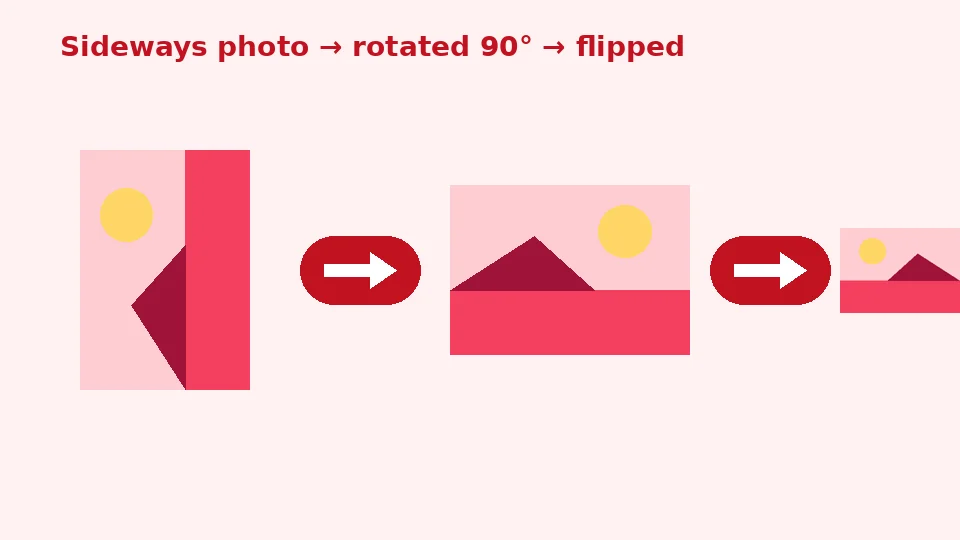
Most rotation problems come from cameras and phones. They usually save the picture in the sensor's native direction and add a small note saying which way is up. Many apps read that note, but some upload forms, older editors and print services ignore it, so a portrait shot suddenly appears on its side. Rotating the actual pixels fixes the problem for good, because the image no longer depends on anyone reading the note. That matters most when the picture is going somewhere you cannot check first, such as a job application, a marketplace listing or a print order.
Scans are another common case. A page fed into a scanner upside down or a receipt photographed at an angle is easier to read once it is turned the right way.
The hidden orientation tag
EXIF orientation is the tag inside a photo that tells software how to display it. This tool reads that tag when it opens your image, applies it, and then saves a clean copy with the pixels already upright. The tag is dropped from the output, so there is nothing left that a strict app could misread.
How to rotate image online with this tool
Add your pictures by dragging them onto the box, browsing, or pasting from the clipboard. Use the Left 90° and Right 90° buttons to make quarter turns, 180° to turn something upside down, or type any value into the Custom angle box. The thumbnails rotate live, so you can check the result before saving.
When it looks right, press Apply and save. Each file is redrawn at full resolution on your device and listed with its new size, ready to download individually or together.
Rotate a picture 90 degrees
The most common fix is a single quarter turn. Press Right 90° for photos that lean to the left and Left 90° for those that lean to the right. Width and height swap automatically, so a 4000 by 3000 landscape becomes a 3000 by 4000 portrait with nothing cropped.
Working in batches
When you rotate multiple images at once, the same turn and flip apply to every file in the list. That is ideal for a folder shot in one orientation. If a folder is mixed, run it in two passes. Results keep their names with -rotated added, and a ZIP button collects them all.
Rotating and flipping
The difference between rotate vs flip is simple. Rotating spins the picture around its centre, so left stays left relative to the subject. Flipping creates a mirror image, so text reads backwards and a person facing right will face left. Both can be combined, for example to correct a selfie that is mirrored and sideways.
To mirror an image, press Flip horizontal for a left-to-right reflection or Flip vertical for an upside-down reflection. The buttons stay highlighted while active, so you always know which settings will be applied. Press a flip button again to switch it off.
Quality, formats and custom angles
Keeping quality
Quarter turns and flips simply move pixels, so you can rotate image without losing quality in PNG and WebP files; every pixel comes through unchanged. JPG files are re-encoded at a very high setting, which keeps any change invisible in practice.
Formats
Output always matches the input. When you rotate JPG photos you get JPG back, and when you rotate PNG graphics transparency is kept, as it is for WebP. Nothing is converted unless you choose to use one of our converters afterwards.
Fixing a tilted horizon
Custom angles are useful to straighten a crooked photo, such as a tilted horizon or a skewed scan. Small values like 1.5 or -2 degrees usually do the trick. The canvas grows so no corner is cut off; in PNG and WebP the new corners are transparent, and in JPG they are filled with the colour you choose. Crop the edges afterwards with our image cropper for a clean frame.
On phones, Windows and Mac
To rotate image on iPhone without changing the original in your library, open this page in Safari, pick photos from Photos or Files, rotate them and save the copies via the share sheet. Android works the same way in Chrome.
If you need to rotate photo on Windows in bulk, the Photos app handles one picture at a time, while this page processes up to 50 in one go with no installation. To rotate image on Mac, Preview works for single files, but this tool adds batch processing, custom angles and a ZIP download in any browser.
Good habits for orientation
Keep the original
Saved copies are separate files, and your originals are never changed. Keep the untouched versions in a safe folder so you can return to them if you decide a different angle works better. It is especially worth doing for once-only photos such as family events. Cloud photo libraries sometimes keep their own orientation setting too, so a picture you turned in one app can appear unchanged in another. Saving a fresh, upright copy avoids that confusion entirely.
Rotate before you edit
Do any turning before cropping, resizing or compressing. Crop guides, aspect ratios and print sizes all depend on whether the picture is portrait or landscape, so getting the orientation right first saves redoing later steps. If a photo also needs better clarity, rotate it here and then try our AI enhancer.
Check how others will see it
Before sending a picture to a print shop, an online form or a client, open the saved copy in a second app, such as a different browser or an image viewer. If it looks right there too, the orientation is baked in and it will display correctly for the recipient. Print labs in particular often ignore orientation tags, so this simple check prevents sideways prints and wasted paper.
Turning screenshots and scans
Screenshots taken in landscape on a phone, or scans fed in sideways, are quick to fix in a single batch. Select them all, apply one quarter turn, and save. Text inside them becomes readable again without any change to sharpness. For multi-page scans saved as a PDF, convert the pages to images with our PDF to JPG tool first, rotate the ones that need it here, then combine them again with JPG to PDF so the finished document reads correctly from start to finish.
Tips and troubleshooting
The picture still looks sideways
If a photo looks correct on your phone but sideways elsewhere, add it here and press Apply and save without any rotation. The saved copy has the orientation baked in and will display correctly everywhere.
Large files and older devices
Very large photos, such as 50-megapixel camera files, can take a second or two each on older phones. Process big batches in smaller groups if the page feels slow. Files are limited to 50 MB each, and a batch can hold 50 images. Closing other heavy tabs frees memory and makes large jobs noticeably quicker on phones and older laptops.
Privacy
Everything happens in your browser, nothing is uploaded or stored, and closing the tab clears the images from memory. The tool is free, has no daily limit or watermark, and does not use EnhancerPro credits.
Frequently asked questions
Related tools
Need sharper, bigger or restored photos?
Our AI tools enhance, upscale and repair images for free on your device, with optional cloud processing on Pro credits.