
Resize an Image to the Width You Need
Make a large photo smaller in pixels so it fits a website, email or form, with the proportions kept.
- Runs in your browser
- No upload, no account
- Keeps proportions
- Never stretches
- No watermark
Phones and cameras produce images far larger than most screens show. Resizing lowers the pixel dimensions, which makes files smaller, uploads faster and pages lighter. Enter a maximum width and this tool scales the image down proportionally in your browser, so height follows automatically and nothing is stretched. It never enlarges a picture beyond its original size; for that, use the upscaler. The guide below lists sensible widths for common uses and explains the difference between resizing, cropping and upscaling.
How to resize an image in 4 steps
1. Choose a photo
Pick a JPEG, PNG or WebP file.
2. Enter a max width
Type the width in pixels, from 1 to 8000.
3. Resize
Height is calculated automatically to keep the shape.
4. Download
Save the smaller file; the original is unchanged.
What this free tool does
Proportional scaling
Width and height change together, so nothing looks squashed.
Down, not up
Images smaller than the width you set are left at their size.
High-quality resample
Smooth downscaling that keeps edges clean.
Compact output
Saved as high-quality WebP for small files.
Private
All processing happens in this tab.
Free and unlimited
No account or watermark.
Who uses it
Websites and shops
Images sized to the layout they appear in.
Email and chat
Lighter photos that send quickly.
Forms and portals
Uploads that must be under a pixel limit.
Documents
Pictures that keep reports and slides small.
Free vs Pro: what you pay for
Free · this tool
Image Resizer
- Unlimited and free
- Runs in your browser, no upload
- One file at a time with an instant preview
- No account, no watermark, no credits used
Pro credits · Pro AI tools
Enhance, upscale, restore
- Credits are only for Pro AI processing
- 5 free Pro credits every week with an account
- Charged only when a job succeeds
- Format tools like this one stay free
Sensible widths for common uses
Use the largest width the image will actually be displayed at. Anything above that just adds file size.
| Use | Suggested width | Notes |
|---|---|---|
| Blog or article image | 1200 to 1600 px | Sharp on most laptop screens |
| Full-width website hero | 1920 to 2560 px | Larger only for very wide displays |
| Email attachment | 1200 to 1600 px | Clear on phones and desktops |
| Profile picture | 400 to 800 px | Most sites display much smaller |
| Product listing | 1000 to 2000 px | Allows zoom on many marketplaces |
Resize, crop or upscale?
- Resize when the picture is the right shape but has too many pixels.
- Crop when the picture is the wrong shape, for example a wide photo for a square avatar.
- Upscale when the picture has too few pixels for a screen or print; the image upscaler handles that.
- For a platform with a fixed size, crop to the ratio first, then resize to the width.
Why the tool never enlarges
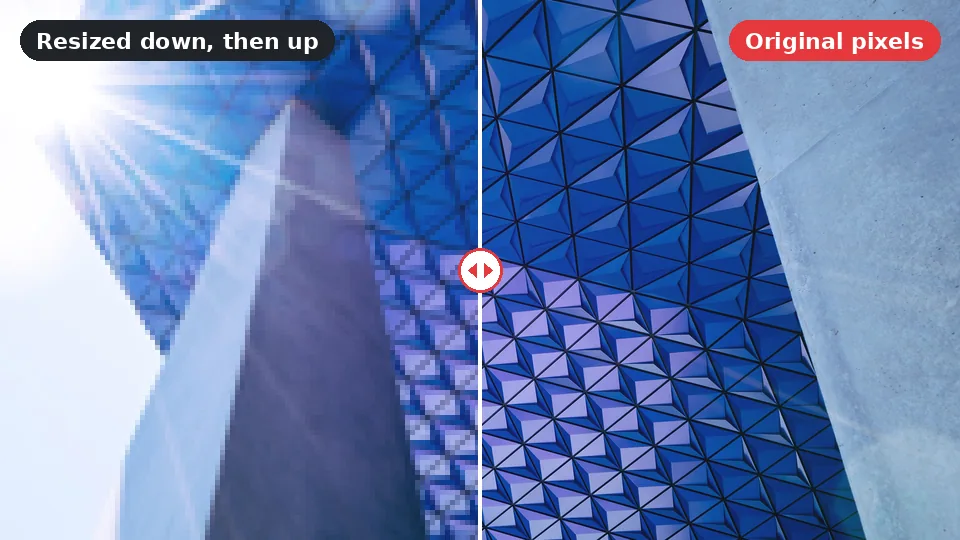
Making an image bigger with a plain resize spreads the same detail over more pixels, which looks soft. That is why this resizer stops at the original width. If you need a larger image, the AI upscaler predicts additional detail in a way that holds up better, and it shows a before/after comparison so you can judge the result.
Retina and high-density screens
Phones and many laptops have screens that pack two or three device pixels into each layout pixel. An image shown 600 px wide on such a screen looks crisper if the file is 1200 px wide. If sharpness on these devices matters, double the display width, then compress the file to keep it light.
Output format and privacy
Resized images are saved as high-quality WebP, which keeps file size low. Convert to JPEG or PNG with the image converter if a form insists. Everything runs in your browser, so the photo is never uploaded.
What happens when pixels are removed
Making an image smaller is called downsampling. The resizer works out each new pixel from a group of original pixels, blending them together. Done well, this keeps the picture smooth and accurate. It also softens the finest detail slightly, which is why photos can look a touch less crisp after a big reduction.
- Resize in one step from the original rather than shrinking repeatedly.
- If the result looks soft, a light sharpen afterwards restores crispness.
- Resize before compressing, because fewer pixels make far more difference to file size than a lower quality setting.
- Keep the original; you cannot get the removed pixels back from the smaller copy.
Working out the other side
When you lock the aspect ratio and type a new width, the height is calculated for you: new height equals new width multiplied by the original height, divided by the original width. A 4000 × 3000 photo resized to 1200 px wide becomes 1200 × 900.
| Original | New width | Result |
|---|---|---|
| 4000 × 3000 (4:3) | 1200 | 1200 × 900 |
| 6000 × 4000 (3:2) | 1500 | 1500 × 1000 |
| 3840 × 2160 (16:9) | 1280 | 1280 × 720 |
| 3024 × 4032 (3:4 portrait) | 1080 | 1080 × 1440 |
If a platform needs an exact width and height in a different shape, crop to that ratio first with the free Image cropper, then resize. Resizing alone to a different shape would stretch the picture.
Resizing for social media and the web
Most platforms resize uploads to fit their layouts and recompress them. Uploading a file close to the size they display gives their software less to do and usually looks cleaner than a huge original. For your own website, resize to the largest width the image is actually shown at, or twice that for high-density screens, then compress.
- Check the platform’s current help page for its recommended sizes, since they change.
- Keep the longest side reasonable, for example 2000 to 2500 px, for general sharing.
- Name resized copies with the width, such as hero_1600.jpg, so you never upload the wrong one.
Frequently asked questions
Related tools
Need sharper, bigger or restored photos?
Our AI tools enhance, upscale and repair images for free on your device, with optional Pro AI processing on credits.