
Fix Blurry Text in Images Without Rewriting a Letter
Make soft words in screenshots, scans and photos easier to read, free and private, with no invented characters.
Add a photo
Drop it here, or click to browse.
Free on this device. Nothing is uploaded.
- Free on this device
- No upload in free mode
- Never rewrites letters
- Credits only on success
- No watermark
Use this page to fix blurry text in a screenshot, a scanned page, a photo of a whiteboard or a sign shot from across the street. The free pass raises contrast exactly at letter edges in your browser, so strokes stand out from the background without the file leaving your device. For small or heavily compressed text, a Pro run with the Swin2SR model costs one credit, charged only if it succeeds. One rule shapes everything here: we make existing letters clearer, we never guess new ones. If a word was unreadable in the original, a sharp-looking version of it would be fiction.
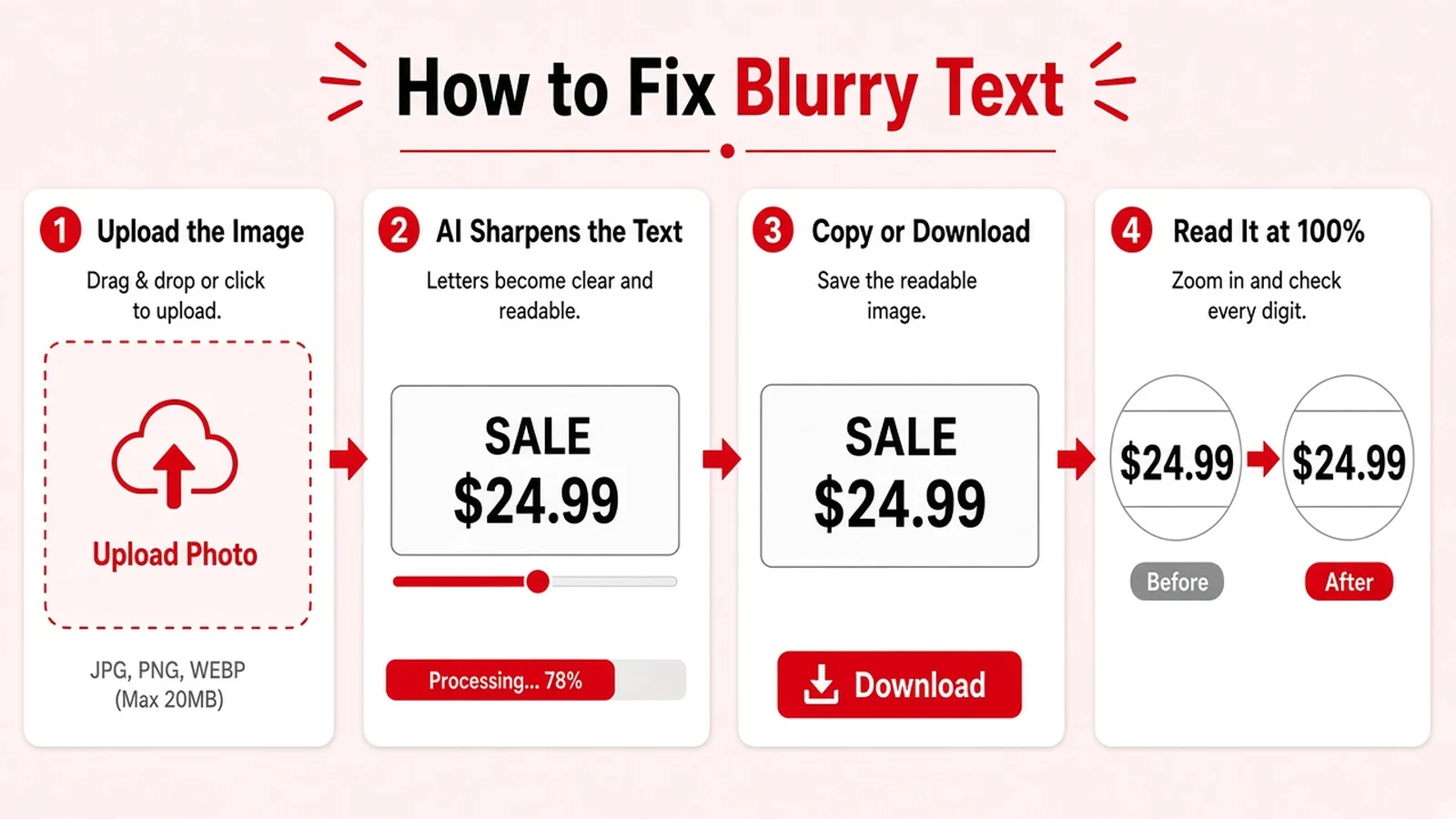
How to fix blurry text in 4 steps
1. Upload the image
Drop or paste a screenshot, scan or photo with text, up to 20 MB. Crop close to the text for best results.
2. Choose Text
Raise the slider until letter edges look crisp. Stop before outlines appear around strokes.
3. Read it at 100%
Check every word you need. If a letter is still ambiguous, treat it as unknown.
4. Download or copy
Save the image, or run it through Image to text to copy the words.
What the fix blurry text tool does
Letter-edge contrast
A tight unsharp mask tuned for thin strokes makes text separate from paper and backgrounds.
No character guessing
The free pass cannot create letters; it only strengthens edges that exist.
Swin2SR Pro option
For tiny or compressed text, a restoration model rebuilds cleaner stroke edges.
Pairs with OCR
Clearer images give better results in the free Image to text tool.
Private documents
Free mode never uploads, which matters for statements and forms.
Honest warnings
Pro results note that soft letters can change shape and must not be treated as readings.
Who uses it
Screenshots
Text that went soft after scaling or a chat app's compression.
Scanned pages
Faint, low-contrast scans of letters, forms and notes.
Whiteboards and slides
Photos of a presentation taken from the back of the room.
Signs and labels
Product labels, shop signs and menus photographed at a distance.
Free vs Pro: what you pay for
Free · on this device
No account, no upload
- Unlimited runs on this device, no account
- The photo is never uploaded
- No watermark on the download
- Before/after slider and 100% view
Credits · Pro AI
When you need the AI model
- Pro run with Swin2SR: 1 credit, charged only when the job succeeds
- Signed out: one free Pro try per browser per day
- Free account: 5 Pro credits every week
- Packs from $4.99 for 60 credits, or Plus at $9.99/month for 300
Why text in images goes blurry
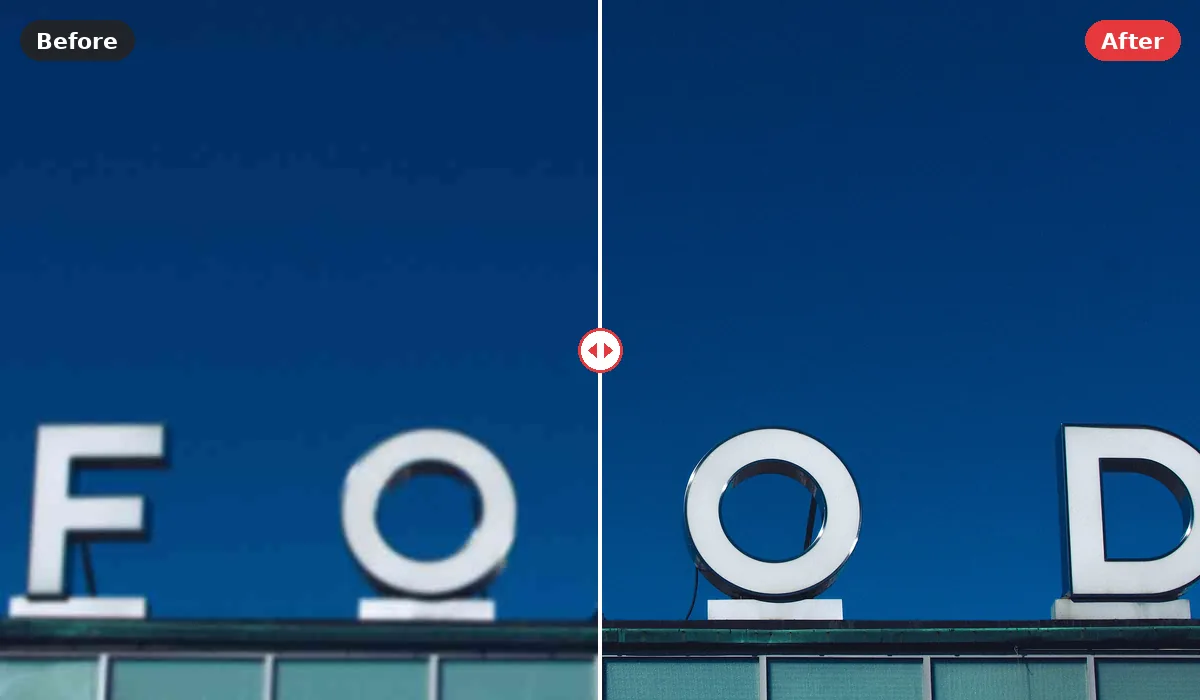
Text is unforgiving. A photo of a landscape can be slightly soft and still look pleasant, but a slightly soft letter e can be mistaken for an o. Text in images blurs for a handful of reasons, and knowing which one you face tells you how much can be done.
Scaling
When a screenshot or a scan is shrunk and enlarged again, sharp stroke edges are averaged with the background. Letters keep their shape but lose crispness. This responds very well to contrast enhancement.
Compression
Chat apps and websites save images as heavily compressed JPEGs. Around text, compression creates blocky noise and ringing that makes thin strokes look dirty. The Pro model handles this better than a filter.
Focus and shake
A phone photo of a document or a sign can be out of focus or shaken. Mild softness is fixable; strong blur turns letters into blobs that cannot be honestly separated.
Low resolution
If a line of text is only a few pixels tall, the letters were never recorded in enough detail. No tool can recover them, only guess.
How this tool makes blurry text readable
The free pass compares each pixel with a slightly blurred copy of the image and adds back part of the difference. Because the effect is concentrated where brightness changes sharply, stroke edges gain contrast while flat paper stays flat. The radius is kept small so thin strokes are not thickened, and the slider controls the amount.
This is deliberately conservative. A filter like this cannot move a stroke, close a gap or add a serif. That limitation is the point: what you read after processing is still what the camera or screen recorded.
When to use Pro
For tiny, compressed or smeared text, the Pro option runs Swin2SR, an open restoration model trained on degraded images. It rebuilds cleaner edges and removes compression noise, and it also enlarges the image, which can make small text easier to read. The result screen warns that soft letters can change shape. One run costs one credit and is only charged if it succeeds.
Blurry text in screenshots, receipts and documents
Screenshots
Most screenshot blur comes from scaling. Crop to the text, run the free pass, and check at 100%. For a dedicated workflow, see the screenshots page, which covers scaling settings in common apps.
Receipts
Thermal receipts fade and photograph poorly. Increase contrast carefully, and never rely on an enhanced number for an expense claim if you could not read it before. The receipts page explains how to photograph them so enhancement is rarely needed.
Printed documents
Photograph flat, in even light, from directly above. Then run the free pass at a low to moderate setting. For several pages, consistency matters more than maximum sharpness.
Handwriting
Pen strokes vary in thickness and pressure, so strong enhancement can make thin parts disappear or thick parts bleed. Use a light touch and check that the writer's letters still look like theirs.
Readable vs reconstructed text
There is a sharp line between making text easier to read and reconstructing text that was not legible. The first is useful and honest. The second is risky, because modern AI can produce perfectly sharp words that look convincing and are simply wrong.
This matters most for numbers. A blurry 3 and a blurry 8 can look alike; a model trained on clean text will happily choose one. If the number is a price, a date, an account number or a licence plate, a wrong guess can cause real harm. Our rule is simple: if you could not read it in the original at 100%, do not trust any enhanced version, ours included.
Evidence and official use
Do not use enhanced text as evidence, in insurance claims, or to identify vehicles or people. Use the original file, and if a record matters, ask for a better copy from its source.
Copy text from an image after clarifying it
Once the letters are clear, you may want the words as editable text. The free Image to text tool on this site runs optical character recognition in your browser and supports several languages. Clarifying the image first often improves recognition, especially for low-contrast scans. Check the recognised text against the image, because OCR can also misread ambiguous characters.
How to photograph text so it stays sharp
Get close and fill the frame
Text needs pixels. Move closer instead of zooming digitally, so each letter is recorded by more of the sensor.
Shoot square-on
Angled shots compress letters at the far side. Hold the phone parallel to the page or sign.
Use even light
Avoid shadows from your hand and glare from overhead lamps. Daylight from a window is ideal for documents. If a glossy page reflects light, the glare tool can tone down hotspots afterwards.
Focus on the text
Tap the words on the screen before shooting, and hold still for a moment after the shutter.
Keep the original
Send documents as files or PDFs rather than through chat apps that compress images.
Troubleshooting soft text
Letters look outlined
Bright or dark rims around strokes mean the strength is too high. Lower it until the rims disappear at 100%.
The background got noisy
Paper texture and compression noise are being sharpened along with the text. Use a lower setting, or try Pro, which separates noise from strokes better.
Thin strokes vanished
Very light, thin strokes can blend into a brightened background. Reduce the strength, and avoid brightening the whole image before clarifying it.
Nothing changed
The text may already be as sharp as the file allows, or it may be too small. Check how many pixels tall a capital letter is: below about eight pixels, a filter has very little to work with.
Colours shifted
Coloured text on coloured backgrounds can gain slight fringes. Keep the setting low, or convert a document to greyscale before sharing if colour is not needed.
Text in other languages and scripts
The free pass works the same on any script because it only looks at edges, not at shapes of particular letters. Arabic, Devanagari, Chinese, Japanese and Cyrillic text all benefit in the same way. Scripts with very fine strokes or many small dots, such as Arabic diacritics, need a lighter touch so that dots are not lost or merged.
Pro AI was trained mostly on natural images rather than text in a specific language, so it does not favour one alphabet. It can still alter fine marks, so check accents and diacritics carefully. When you copy text with the Image to text tool, pick the matching language for the best recognition.
Readable text for everyone
Clear text is an accessibility issue. People with low vision, readers on small phone screens and anyone viewing a projected slide from the back of a room all benefit from crisp, high-contrast lettering. If you publish screenshots, consider adding the text itself as alt text or a caption, so screen readers can read it and search engines can index it. Clarifying the image helps sighted readers; providing the actual text helps everyone.
Free vs Pro for blurry text
For screenshots and decent scans, the free pass is usually all you need, and it keeps sensitive documents on your device. For tiny text in a compressed image, Pro may produce a much more readable result, at the cost of a credit and the possibility of changed letter shapes. Signed-out visitors get one free Pro try per day, and a free account receives five Pro credits every week. Uploaded files are deleted automatically after one hour, or 24 hours with an account.
Written and tested by the EnhancerPro team. Last updated 2026-10-12.
Frequently asked questions
Related tools
- Image to text (OCR)Copy words from the clarified image.
- Blurry screenshotsScaling fixes for screen captures.
- Faded receiptsPhotograph and clarify receipts.
- Sharpen imageGeneral sharpening for photos.
- Remove glareTone down reflections on glossy pages.
- Guide: readable text in a screenshotAvoid soft text at the source.
Try it on your own photo
Start free on this device. Use Pro credits only when a photo needs the AI model, and only pay for runs that succeed.