
Guide
Readable text in screenshots and photos of screens
Text is unforgiving. A landscape can lose a little sharpness and still look fine, but a blurry digit in a receipt, a soft error message or a fuzzy line of code can make an image useless. Most unreadable screenshots are not caused by the screen but by what happens afterwards: resizing, messaging apps that compress images, and photos of monitors taken at an angle. This guide explains how to capture text cleanly, how to share it without losing quality, how to improve text that is already soft, and why you should never trust a tool to tell you what an unreadable letter says.
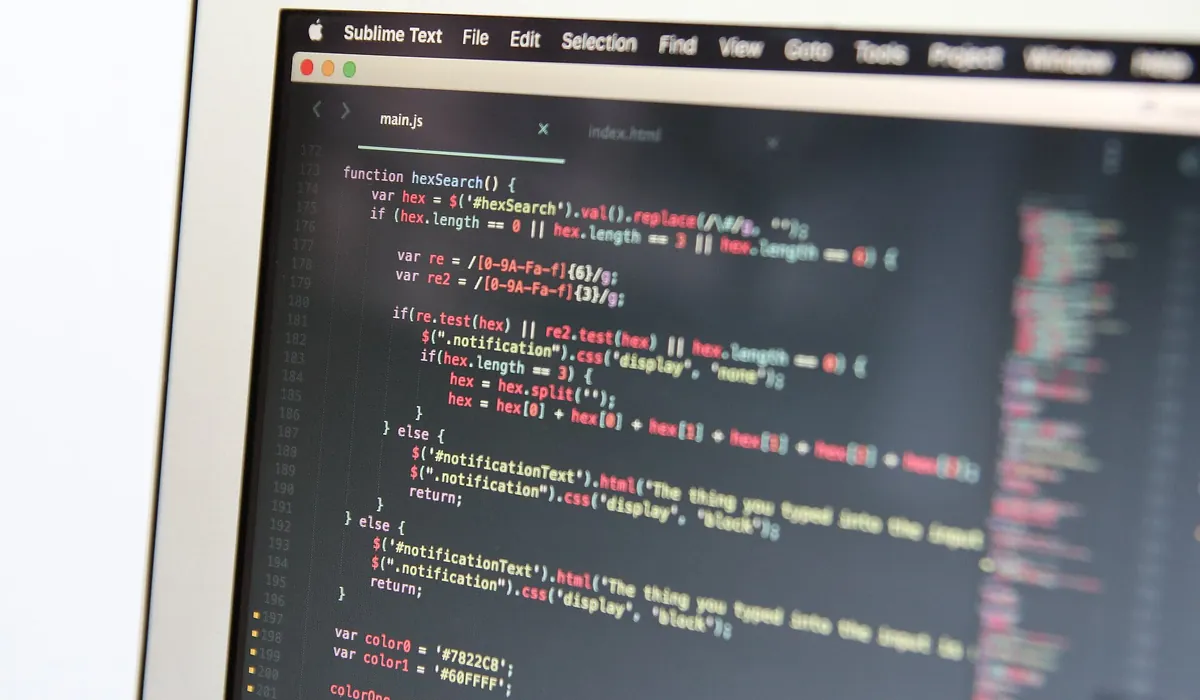
Capture, do not photograph
A real screenshot beats a photo of a screen.
Share the original
Chat apps compress images and blur text.
Contrast before size
Raise text contrast before enlarging.
Read it yourself
Never trust a tool to guess letters.
Tools for clearer text
Why text in screenshots goes blurry
| Cause | What happens | Fix |
|---|---|---|
| Photo of a screen instead of a screenshot | Moiré patterns, glare, angle and focus blur | Take a real screenshot on the device |
| Resizing down then up | Fine letter strokes are averaged away | Keep the original size; crop instead of shrinking |
| Chat app compression | JPG blocks and halos around letters | Send as a file or document, not as a photo |
| Screenshot of a screenshot | Each step adds scaling and compression | Go back to the first capture |
| Low-resolution display or zoomed-out page | Letters are only a few pixels tall | Zoom in on the page before capturing |
How to capture text cleanly
- Use the system screenshot shortcut on your phone or computer rather than a camera.
- Zoom the page or document so the text is comfortably large before capturing.
- Capture only the window or area you need; cropping later is fine, shrinking is not.
- Save as PNG when you can. PNG keeps sharp text edges; JPG adds artefacts around letters.
- If you must photograph a screen, hold the camera straight on, avoid reflections and tap to focus on the text.
Sharing without losing quality
Many messaging and social apps shrink and recompress images to save data. Text suffers most because its edges are sharp. Where possible, send screenshots as a file or document attachment, or share a link to the original instead. If you must post as an image, crop tightly so the text takes up more of the frame before the app resizes it.
Improving text that is already soft
If you only have a blurry screenshot, the fix-blurry-text tool raises local contrast around letters and reduces compression artefacts. It works best on text that is soft but still readable with effort.
- Run Fix blurry text first to improve contrast and clean blocks.
- Upscale 2× if the text is very small, after cleaning.
- Compare at 100% and read each word yourself.
- Stop if letters start to change shape or merge.
Light-on-dark text, such as code editors and dark-mode apps, is more sensitive to compression than dark-on-light text. If the result looks smeared, try the screenshots variant, which is tuned for interface text and thin strokes.
Free mode runs in your browser and keeps the screenshot on your device, which matters for screenshots that contain private messages, account details or work documents.
Never trust a tool to guess a letter
When a letter is unreadable in the original, an AI model can make it sharp, but it may make it the wrong letter. A 3 can become an 8, a 1 an l, and an unfamiliar name can turn into a common word. For anything that matters, such as amounts, account numbers, dates, codes or names, read the original or get a better copy.
| Content | Safe use of an enhanced copy |
|---|---|
| Error message to share with support | Fine, if you can still read it in the original |
| Receipt totals and dates | Check against the paper original |
| Passwords, codes and account numbers | Do not rely on enhanced text |
| Handwriting | Treat any reading as a guess |
Screenshots on different devices
- Most phones capture the full screen at its native resolution, which is sharp enough for nearly any use.
- On computers, capture a single window or area rather than a whole high-resolution monitor if you only need part of it.
- Long "scrolling" screenshots are useful for chats and pages, but they can be very tall; crop to the part that matters before sharing.
- On high-density displays, screenshots are larger than they look. Do not shrink them by half just to save space; text strokes are often only one or two pixels wide.
Privacy before you share
- Crop out names, phone numbers and email addresses that are not needed.
- Cover notification banners at the top of phone screenshots.
- Check the background of photos of screens for other open windows or documents.
- Use Free on-device tools for sensitive screenshots so they are not uploaded.
Common situations and what to do
| Situation | What to do |
|---|---|
| Someone sent you a blurry screenshot | Ask them to send the original as a file |
| Old screenshot, original lost | Fix blurry text, then read carefully |
| Photo of a slide in a lecture or meeting | Crop to the slide, then Fix blurry text |
| Receipt photographed in poor light | Use the receipts variant, check totals on paper |
Quick checklist
- Is it a real screenshot, not a photo of a screen?
- Is the text large enough before capture?
- Saved as PNG and shared as a file?
- Cleaned before upscaling?
- Read and checked by you at 100%?
Written and tested by the EnhancerPro team. Last updated October 14, 2026.
Frequently asked questions
Clarify a soft screenshot
Raise text contrast in your browser, compare at 100%, and read every word yourself.