
Free All Image Converter Online – Convert Any Image Format Instantly
Pick any pair, from PNG to WebP to HEIC to JPG or PDF to PNG, drop your files and download the results. Everything happens in your browser.
- Runs in your browser
- No upload, no account
- Free and unlimited
- 100+ conversion pairs
- Batch + ZIP download
This all image converter puts more than a hundred conversion pairs in one place. Drop in photos, screenshots, iPhone HEIC files, scans, PDFs, GIFs or short videos, choose the output, adjust its settings and download each result or one ZIP. Nothing is uploaded, and the page says plainly which conversions depend on your browser and which are best effort.
How to convert an image to any format
1. Add files
Drag files onto the box, choose them, or paste a screenshot with Ctrl+V.
2. Pick the formats
Convert from is detected for you; choose Convert to, or type a pair such as png to webp.
3. Adjust settings
Quality, transparency, size, PDF page or GIF timing, depending on the output.
4. Convert and download
Save files one by one, or every result in a single ZIP.
What this free tool does
Every pair listed
PNG, JPG, WebP, AVIF, HEIC, GIF, BMP, TIFF, SVG, ICO, PDF, JFIF, RAW and PSD, each pair on its own.
Many files at once
Up to 50 files per batch, with a progress bar and a clear message for any file that fails.
Settings per format
Quality, lossless, background colour, DPI, PDF page size or ICO sizes, as the output needs.
Animations and video
Build GIF, APNG or animated WebP from several images, or turn a short MP4 or WebM into a GIF.
More tools built in
Compress, resize, crop, rotate, EXIF, merge, split, background removal, watermark, favicon and GIF tools.
Private by design
Files are read by your browser and never sent anywhere.
Who uses it
iPhone photos
Turn HEIC pictures into JPG or PNG that open on any computer.
Faster websites
Save PNG and JPG images as WebP or AVIF, with optional resizing.
Documents and forms
Combine scans into one PDF, or save PDF pages as images.
Icons and design
Make ICO files, export SVG, or encode a small image as Base64.
Free vs Pro: what you pay for
Free · this tool
All Image Converter
- Unlimited conversions in every format listed
- Runs in your browser, no upload
- Batch up to 50 files with ZIP download
- No account, no watermark, no credits used
Pro credits · Pro AI tools
Enhance, upscale, restore
- Credits are only for Pro AI processing
- 5 free Pro credits every week with an account
- Charged only when a job succeeds
- Format tools like this one stay free
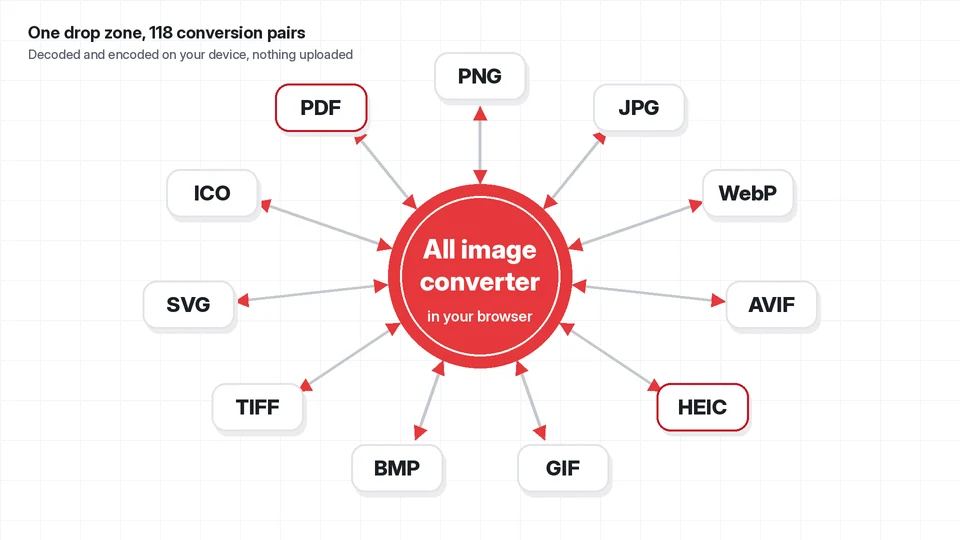
One converter for every common image format
Most free converters do one job: HEIC to JPG on one site, PDF to PNG on another. This page brings those jobs together. One drop zone accepts photos, screenshots, scans, PDFs, GIFs, short clips, camera RAW files and Photoshop documents, and the Convert to menu only shows outputs that make sense for your file.
Choose the two formats from the menus, type a pair such as heic to jpg into the search box, or click it in the grid under the tool. Each pair has its own address, such as #png-to-webp, so you can bookmark it.
- Still images: PNG, JPG, JFIF, WebP, AVIF, HEIC, GIF, BMP, TIFF, SVG and ICO.
- Documents: images to one PDF, PDF pages to images, and the photos embedded in a PDF.
- Animations: several images to GIF, APNG or animated WebP, GIF to frames, MP4 or WebM to GIF.
- Text and code: image to Base64 or data URL, Base64 back to an image, and image to text with OCR.
Supported conversions at a glance
The table lists every source format and where it can go. Pairs marked best effort work with a stated limit; pairs that depend on the browser are checked when the page loads.
| From | To | Notes |
|---|---|---|
| PNG | JPG, WebP, AVIF, GIF, BMP, TIFF, SVG, ICO, PDF, Base64 | HEIC output: not possible in browsers yet |
| JPG | PNG, WebP, AVIF, GIF, BMP, TIFF, SVG, ICO, PDF, JFIF, Base64 | JPG to JFIF is a rename with no quality loss |
| WebP | PNG, JPG, AVIF, GIF, BMP, TIFF, SVG, ICO, PDF | Animated WebP input keeps the first frame |
| AVIF | PNG, JPG, WebP, GIF, BMP, TIFF, PDF | Needs a browser that can open AVIF |
| HEIC | JPG, PNG, WebP, AVIF, GIF, BMP, TIFF, PDF | Decoded with libheif in your browser |
| GIF | PNG, JPG, WebP, AVIF, BMP, TIFF, PDF, APNG, frames | MP4 and WebM depend on your browser |
| BMP, TIFF, ICO | PNG, JPG, WebP and the other still formats | Multi-page TIFF gives one file per page |
| SVG | PNG, JPG, WebP, AVIF, GIF, BMP, TIFF, ICO, PDF, Base64 | Rendered at the DPI you choose |
| JPG, PNG, WebP, AVIF, GIF, BMP, TIFF, embedded images | SVG output wraps each page as an image | |
| RAW, PSD | JPG, PNG | Best effort, see below |
| Several images | One PDF, animated GIF, animated WebP, APNG | Frames are fitted to the first image |
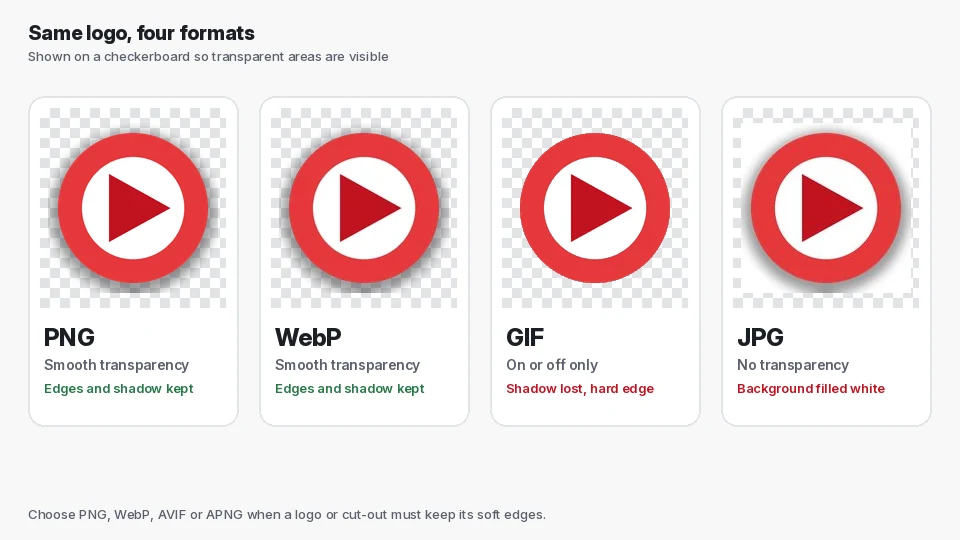
Image formats compared
Choosing an output is easier when you know what each format can store. These are properties of the formats themselves, from their specifications.
| Format | Transparency | Animation | Compression | Good for |
|---|---|---|---|---|
| JPG | No | No | Lossy | Photos that must open everywhere |
| PNG | Yes, smooth | Through APNG | Lossless | Screenshots, logos, text |
| WebP | Yes, smooth | Yes | Lossy or lossless | Images on websites |
| AVIF | Yes, smooth | Yes | Lossy or lossless | Small, high-quality web photos |
| HEIC | Yes | Image sequences | Lossy | Photos taken on iPhone |
| GIF | On or off only | Yes | Lossless, 256 colours per frame | Short, simple animations |
| TIFF | Yes | Multiple pages | Usually lossless | Scans, print and archives |
| SVG | Yes | Through code | Vector, not pixels | Logos and icons at any size |
What works fully, what is best effort, and what browsers cannot do
Fully supported
Conversions between PNG, JPG, WebP, GIF, BMP, TIFF, ICO, PDF and Base64 work in every current browser: the canvas writes PNG and JPG, and the other writers are bundled with the page. HEIC, TIFF, PDF and GIF are read by bundled decoders, so they work even where the browser cannot display them. AVIF output uses the browser's encoder if it has one and a bundled encoder otherwise.
Best effort
- RAW to JPG or PNG uses the JPEG preview cameras store inside the RAW file, not a new development of the sensor data.
- PSD to JPG or PNG reads the flattened image saved in 8-bit RGB and greyscale files; CMYK and 16-bit files show a message.
- Anything to SVG either embeds the pixels exactly or traces flat graphics into shapes; photos do not become clean vectors.
- PDF to SVG renders each page as an image inside an SVG; text is not kept as text.
- Extracting images from a PDF saves stored photos and scans but skips unusual encodings.
- Image to text uses Tesseract OCR, which is good on clear scans and weak on handwriting.
Depends on your browser
GIF to MP4 and WebM use your browser's own video recorder, and animated WebP needs a browser that can write WebP. The page checks both when it loads and tells you before you start if your browser cannot.
Not possible in a browser yet
Saving as HEIC. No current browser can encode HEIC, and licensing for the HEVC codec it uses makes a free in-browser encoder impractical. The HEIC options stay listed in case a browser adds support, but today they suggest JPG or AVIF instead.
How the conversion stays on your device
The converter reads each file's first bytes to recognise the real format, even if the extension is wrong. PNG, JPG and WebP are saved with the browser's canvas. HEIC, TIFF, GIF, AVIF and APNG work runs in a background worker so the page stays responsive, and pdf.js draws PDF pages.
Libraries load from this website only when a conversion needs them. Because no file leaves your device, there is no queue, no daily limit and no stored copy.
Choosing the right output format
For websites
WebP opens in every major browser and is usually smaller than JPG or PNG at similar quality. AVIF can be smaller still but encodes more slowly. Resizing images to the width they are shown often matters more than the format.
For documents, printing and email
JPG is the safest choice when you do not know the recipient's software. For scans that belong together, make one PDF on A4 or US Letter. For print, keep the original size and use 300 DPI for PDF or SVG.
For logos and animations
Keep logos in PNG or SVG so edges stay sharp. For animations, GIF plays everywhere but is limited to 256 colours; APNG and animated WebP keep full colour and smooth transparency.
Tips for better results
- Convert the original file, not a copy from a chat app, which is usually compressed again.
- Avoid converting a JPG to PNG to make it sharper. PNG keeps what is there; it cannot restore detail that JPG compression removed.
- When transparency must survive, choose PNG, WebP, AVIF or APNG and keep Keep transparency ticked. JPG and PDF always fill the background.
Frequently asked questions
Related tools
Need sharper, bigger or restored photos?
Our AI tools enhance, upscale and repair images for free on your device, with optional Pro AI processing on credits.