
Remove Background from Image Free, Right in Your Browser
Cut out people, pets and products with an AI model on your own device, then save a transparent PNG or a clean white backdrop.
Add a photo
Drop it here, or click to browse.
Free on this device. Nothing is uploaded.
- Free AI cutout in your browser
- No upload in free mode
- Transparent PNG or white
- Credits only on success
- No watermark
Remove background from image files without uploading them: the free mode runs an AI segmentation model (BiRefNet-lite, U2Net or MODNet, depending on your device) right in your browser, separates the subject from the background, and gives you a transparent PNG or a white backdrop. There is no account, watermark or limit. When you need the sharpest edges at full resolution, for example for a product listing or print, Pro mode runs the full BiRefNet model for one credit, charged only on success. Both modes can struggle with glass, fine hair and holes in objects, so check the edges before you use the result.
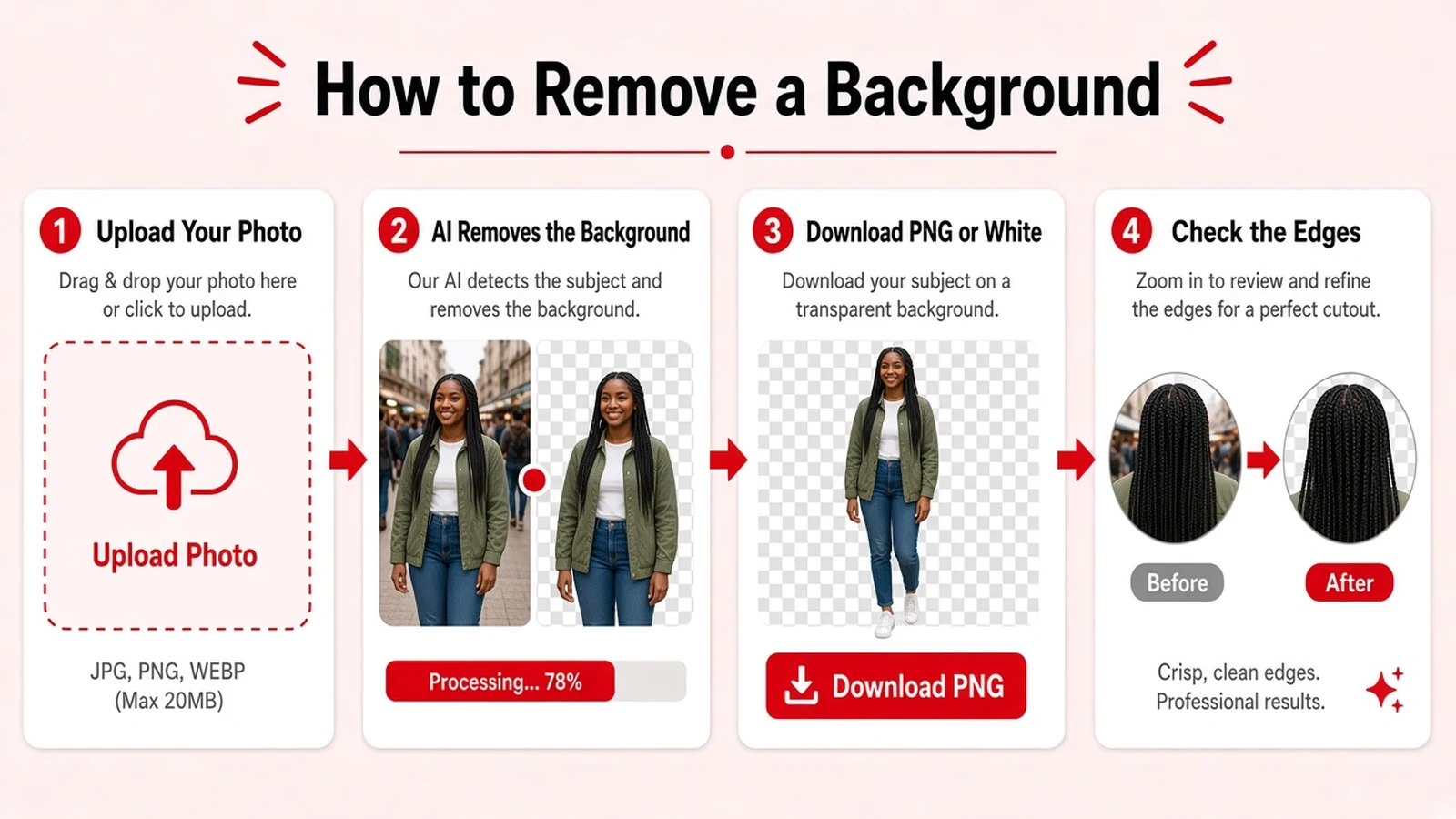
How to remove a background in 4 steps
1. Upload the photo
Drop or paste a JPG, PNG, WebP or HEIC up to 20 MB with a clear subject.
2. Choose Background
The free AI cutout runs on your device. Switch to Pro for full-resolution BiRefNet.
3. Check the edges
Zoom in on hair, fur, glass and gaps between arms or handles.
4. Download
Save a transparent PNG, or place the subject on clean white.
What the remove background from image tool does
On-device AI cutout
A segmentation model runs in your browser, so the photo never leaves your device.
Full BiRefNet in Pro
An MIT-licensed model that keeps finer edges at full resolution.
Transparent or white
Export a PNG with transparency or a flat white backdrop for marketplaces.
People, pets and products
Works on most clear subjects, not only portraits.
Before/after check
Slide across the edge to compare the cutout with the original.
No watermark, no limit
The free cutout is unlimited and unbranded.
Who uses it
Online shops
Product photos on white for marketplaces and catalogues.
Profile pictures
A clean or colourful backdrop behind a headshot.
Stickers and designs
Subjects for collages, thumbnails and presentations.
Pets
Fur-friendly cutouts for cards and gifts.
Free vs Pro: what you pay for
Free · on this device
No account, no upload
- Unlimited AI cutouts on this device
- The photo is never uploaded
- Transparent PNG or white backdrop
- No watermark, no account
Credits · Pro AI
When you need the AI model
- Pro run with BiRefNet: 1 credit, charged only when the job succeeds
- Signed out: one free Pro try per browser per day
- Free account: 5 Pro credits every week
- Packs from $4.99 for 60 credits, or Plus at $9.99/month for 300
How AI background removal works
Background removal is a segmentation problem: for every pixel, decide whether it belongs to the subject or the background. Older tools did this by colour, which works for a green screen but fails on ordinary photos. Modern tools use neural networks trained on thousands of hand-cut images, so they recognise people, animals and objects regardless of colour.
The output is a matte: a greyscale map where white means subject, black means background, and greys mean partly both. Grey values matter at soft edges such as hair and fur, where a pixel mixes subject and background. A good matte keeps those in-between values; a poor one makes edges hard and jagged.
Free on-device models
In Free mode, your browser downloads a compact segmentation model once and runs it locally. Depending on your device and browser support, it uses BiRefNet-lite, U2Net or MODNet. The photo is never uploaded, and there is no limit on how many you process.
Full BiRefNet in Pro
Pro sends the photo to our secure servers and runs the full BiRefNet model, released under the MIT licence, at full resolution. It generally produces finer, cleaner edges, especially on large product photos. One run costs one credit and is charged only if it succeeds.
Remove background from image files in batches of work
If you have many photos to cut out, such as a product range, work in a steady routine. Shoot all items with the same setup, so lighting and distance match. Process them one after another here, checking each edge at 100%. Save each cutout with a clear file name that matches your product code. Then place them all on the same backdrop, with the same margin, so the catalogue looks consistent.
Consistency matters more than perfection. Shoppers notice when one product sits higher, larger or on a slightly different white than its neighbours. A quick pass with the image resizer to give every file the same dimensions finishes the job.
Remove background from product photos
Marketplaces such as Amazon, eBay and Etsy favour product photos on white, and many require it for the main image. A clean cutout makes products look consistent across a catalogue and lets you reuse one shot in many layouts.
Shoot for an easy cutout
Place the product on a plain surface that contrasts with it, light it evenly from both sides, and leave space around it. The cleaner the photo, the cleaner the cutout.
Check reflective and clear products
Glass, clear plastic and polished metal show the background through or in them. Models often cut these badly. Inspect them at 100% and expect to retouch.
Keep a natural shadow
Products floating on pure white can look pasted on. Many sellers add a soft shadow under the item in a design tool after the cutout.
For a white backdrop with sizing guidance for marketplaces, see the white background page, and our guide on product photos on white.
Transparent PNG vs white background
A transparent PNG keeps only the subject, with empty space around it. It is the right choice when you will place the subject on another design, such as a thumbnail, poster or collage. A white background flattens the subject onto white, which is what most marketplaces and ID-style photos need.
Which file format?
Transparency needs PNG or WebP. JPEG cannot store transparency, so a JPEG export always has a background colour. If file size matters, convert the PNG to WebP afterwards, which keeps transparency at a smaller size.
Getting clean edges on hair, fur and glass
Hair and fur
Fine strands are the hardest part. Shoot against a plain background with contrast to the hair colour, and avoid backlit hair against a bright sky. Use Pro for portraits where hair detail matters.
Holes and gaps
Spaces between arms and body, cup handles and bicycle frames should become transparent. Models sometimes fill them with background. Check them specifically.
Glass and transparency
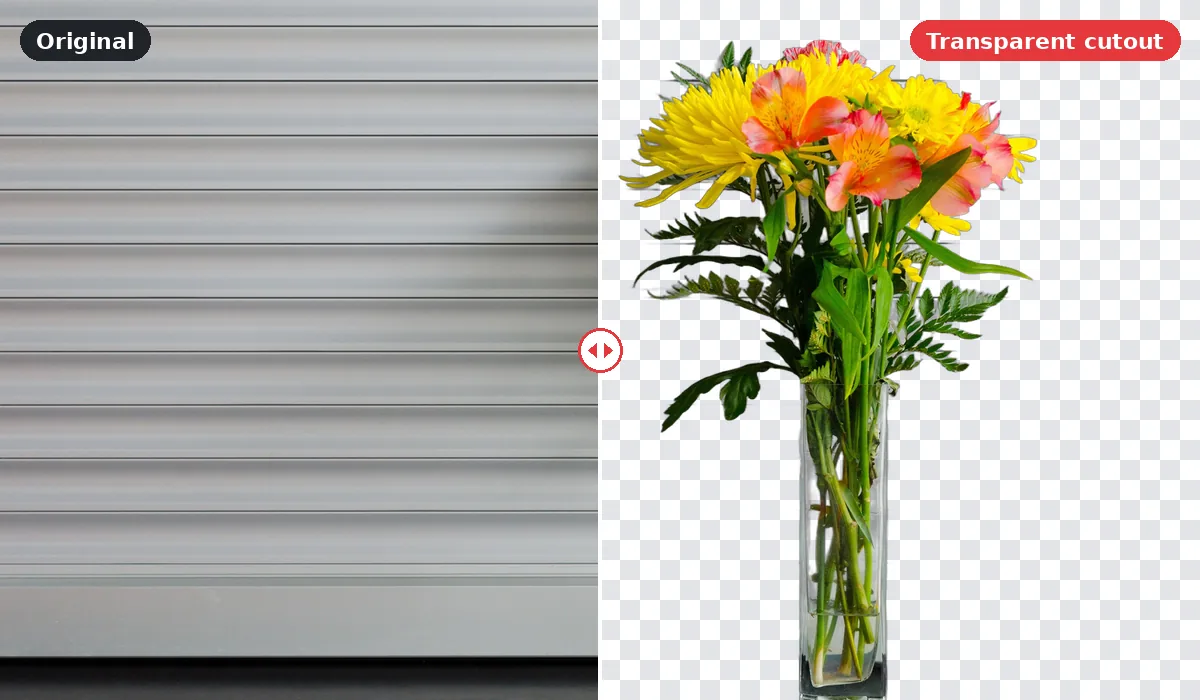
A glass vase is partly see-through, and no cutout model fully understands that. Expect the background visible through the glass to stay, or the glass to be partly removed.
Shadows
Most models remove cast shadows with the background. If you want to keep a shadow, you will need to add one back in a design tool.
Free vs Pro background removal
Free mode suits most everyday cutouts: profile photos, social graphics, pets, and products on reasonably plain backgrounds. It is private and unlimited. Very large photos are scaled down to about 4 megapixels for processing on your device.
Pro suits large photos, busy backgrounds and work where edges will be seen closely, such as print, hero banners and marketplace main images. It costs one credit per successful run. Signed-out visitors get one free Pro try per day, and free accounts receive five Pro credits each week. Pro files are deleted automatically after one hour, or 24 hours with an account.
Background removal for people and portraits
For headshots, a cutout lets you place yourself on a clean colour or a brand background. Keep the edges natural, avoid harsh outlines, and check glasses and earrings, which models sometimes clip. For passport and visa photos, use the passport photo maker, which handles official sizes and a white backdrop together.
Be considerate with other people's photos. Cutting someone out of a group and placing them in a new scene can change the meaning of a photo. Ask before you publish an edited image of someone else.
Ideas for using cutouts
Thumbnails and covers
Place a cut-out subject on a bold colour with large text for video thumbnails, podcast covers and blog headers.
Presentations
A cutout sits cleanly on any slide colour, which looks more polished than a rectangle photo.
Greeting cards and gifts
Pets and people on a festive backdrop make simple, personal cards.
Catalogues and menus
Consistent cutouts let products or dishes line up neatly in a grid.
Design mock-ups
Drop a product into a scene to preview packaging or a website layout before a real photo shoot.
Background removal and privacy
Many background removers upload every photo to a server, even in free tiers. Ours does not in Free mode: the model runs in your browser, so family photos, unreleased products and client work never leave your device. You can confirm this in your browser's network panel, where no image upload appears.
When you choose Pro, the photo is uploaded over an encrypted connection, processed, and deleted automatically after one hour, or 24 hours with an account. We never use uploaded photos to train models. The privacy policy lists the services involved.
Common problems and fixes
Part of the subject disappeared
Low contrast between subject and background, such as a white shirt on a white wall, confuses models. Reshoot against a contrasting colour or try Pro.
Background left in corners
Busy scenes with objects touching the subject may keep fragments. Crop tighter before removing, or use Pro.
Jagged edges
Small images produce coarse mattes. Use the largest original, or upscale before cutting out.
Halo around the subject
A thin line of the old background colour can remain at the edge. It shows on contrasting new backgrounds. Choose a new background close to the original colour, or use Pro.
Remove background on iPhone and Android
The page works in mobile Safari and Chrome. On first use, the browser downloads the cutout model, which takes a few seconds on a good connection and is then cached. Processing runs on the phone; newer phones are fast, older ones take a little longer. HEIC photos are accepted.
Written and tested by the EnhancerPro team. Last updated 2026-10-12.
Frequently asked questions
Related tools
- White backgroundMarketplace-ready product photos.
- Passport photo makerOfficial sizes on white.
- Remove objectErase distractions instead of the whole background.
- PNG to WebPSmaller files that keep transparency.
- AI image upscalerEnlarge before cutting out small photos.
- Guide: product photos on whiteShoot and cut out for shops.
Try it on your own photo
Start free on this device. Use Pro credits only when a photo needs the AI model, and only pay for runs that succeed.