
PNG to WebP Converter for Faster Pages
Make PNG images far lighter while keeping transparency, without sending a single file anywhere.
Drop PNG files here, or click to choose
PNG files only · up to 50 files · 50 MB each · Ctrl+V to paste · nothing is uploaded
- Runs in your browser
- No upload, no account
- Free and unlimited
- No watermark
- Batch + ZIP download
This free PNG to WebP converter shrinks graphics, screenshots and photos saved as PNG so your pages load faster. Add one image or a whole batch, choose a quality level or switch to lossless, then download each file or a ZIP. Everything happens in your browser, so your images remain on your device.
How to convert PNG to WebP in four steps
1. Add PNG images
Drop files on the box, click to browse, or paste a screenshot with Ctrl+V.
2. Pick quality
Use the slider for lossy output, or tick Lossless for a pixel-perfect copy.
3. Convert
Press Convert to WebP and watch the size drop on each row.
4. Download
Save single files or every result as one ZIP archive.
What this free tool does
Transparency kept
The alpha channel survives, so logos and icons stay see-through.
Lossy or lossless
Choose the smallest file or an exact copy of every pixel.
Clear savings
See the size before and after, with the percentage saved.
Batch and ZIP
Convert up to 50 PNGs at once and download them together.
Private by design
Images never leave the browser, so client work stays confidential.
No limits
No signup, watermark or daily cap, and no credits used.
Who uses it
Website speed
Lighter images help Largest Contentful Paint and mobile data use.
Blogs and stores
Product shots and banners upload faster to your CMS.
App assets
Smaller icons and sprites shrink app and extension bundles.
Docs and screenshots
Keep text crisp while trimming heavy PNG captures.
Free vs Pro: what you pay for
Free · this tool
PNG to WebP Converter
- Unlimited conversions
- Runs in your browser, no upload
- Batch up to 50 files and ZIP download
- No account, no watermark, no credits used
Pro credits · AI cloud tools
Enhance, upscale, restore
- Credits are only for AI cloud processing
- 5 free cloud credits every week with an account
- Charged only when a job succeeds
- Format tools like this one stay free
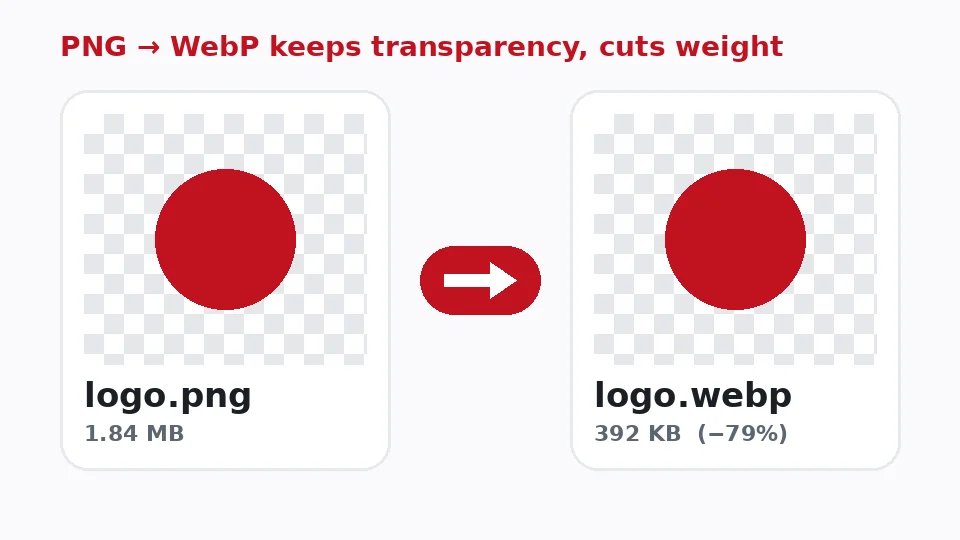
Why convert PNG to WebP?
PNG is excellent for sharp graphics and transparency, but it is heavy. A single full-width screenshot can weigh several megabytes, which slows pages down and costs visitors on mobile data. WebP was designed by Google to keep the same look in a fraction of the space, and every major browser has supported it since 2020.
If you want to reduce PNG file size without resizing or cropping, switching format is often the single biggest win. Graphics with flat colour and photos saved as PNG frequently drop by 50 to 80 percent, and the difference is hard to spot on screen.
How the two formats compare
When you compare WebP vs PNG, both support transparency and both offer a lossless mode. PNG is more widely accepted by older desktop software and print workflows. WebP adds an optional lossy mode, which is where most of the savings come from, and it also handles animation. For anything shown in a browser, WebP is usually the better delivery format.
How this PNG to WebP converter works
Your browser decodes each PNG, paints it onto a hidden canvas with the alpha channel intact, and encodes that canvas as WebP at the setting you chose. All of this happens inside the tab. No server receives your images, which also means there is no queue and no file-count limit beyond your device's memory.
Chrome, Edge and Firefox can all create WebP files this way. Some versions of Safari can display WebP but cannot encode it, so if you are on a Mac with Safari the tool will tell you and suggest another browser.
Batch convert PNG to WebP
Need a whole folder done? Select or drop up to 50 files at once. They are processed one after another with a progress bar, and the results can be saved individually or together. Names are kept, so header.png becomes header.webp, which makes swapping them into a project straightforward.
Choosing quality, lossless mode and transparency
Lossy quality settings
The slider controls PNG to WebP quality on a scale of 50 to 100. The default of 85 suits most photos and illustrations. For screenshots with small text, 90 or higher keeps letters crisp. For large hero photos, 75 to 80 often looks the same on screen at a much lower weight. Watch the size column and compare the preview until you find the balance you like.
PNG to WebP lossless
Tick Lossless when every pixel must stay exactly as it was, for example pixel art, UI mock-ups or images you will edit again. Lossless WebP is typically around a quarter smaller than an optimised PNG. It will not shrink as much as lossy mode, but nothing is thrown away.
Keeping see-through areas
Logos, icons and cut-out products rely on transparent backgrounds. This tool converts PNG to WebP with transparency preserved in both lossy and lossless modes, so the result drops onto any page colour cleanly. If you need the opposite, a solid background for a marketplace, our background tools can help.
Using WebP on your website
If you want to convert PNG to WebP for website use, the easiest route is to keep the same file names and update the extension in your HTML or CSS. Many developers use a picture element with a WebP source and the original PNG as a fallback, though with current browser support the fallback is rarely needed.
For PNG to WebP for WordPress, upload the converted files straight to the media library; WordPress has accepted WebP since version 5.8, provided your host's image library supports it. Shopify, Wix, Squarespace and most modern site builders accept WebP uploads as well.
Email, social media and documents
WebP is built for browsers, so think twice before using it outside the web. Several email clients, older office suites and some social networks still convert or reject it, and print shops generally expect JPG, PNG or PDF. For those destinations keep the original PNG, or create a JPG copy with our converter. Use WebP where it shines: pages and apps that you control, where every kilobyte saved makes the experience faster for every visitor, on every device and connection.
Will it help Core Web Vitals?
Images are often the largest element on a page, so lighter files help the Largest Contentful Paint score and reduce data use for mobile visitors. Pair the format change with correct width and height attributes and lazy loading for images below the fold, and you remove two of the most common speed warnings.
Practical tips before you publish
Resize first, then convert
Format is only half the story. A 4,000-pixel screenshot displayed in an 800-pixel column still wastes bandwidth even as WebP. Scale images to roughly twice the width they will appear at, which keeps them sharp on high-density screens, and then convert. Our image resizer handles the first step in the same private, in-browser way.
Check text and fine lines
Lossy compression can soften thin lines and small lettering. After converting a screenshot, a chart or a diagram, zoom in on the preview and compare it with the original. If edges look fuzzy, raise the slider by five or ten points or switch to lossless. Photographs are far more forgiving and rarely need more than the default.
Name files sensibly
Search engines read file names as a small relevance hint, and people see them when they download your images. Search engines read file names, so a descriptive name such as red-running-shoes.webp is better than IMG_2041.webp. Rename your PNGs before converting and the new files will inherit those names, so there is nothing extra to fix afterwards. Add meaningful alt text when you place the images on a page, and set width and height so the layout does not jump while they load.
When a file will not convert
If a file is rejected, make sure it really is a PNG; the tool checks the file signature, not just the extension. Partly downloaded or damaged images cannot be decoded, so download them again. If every file fails, your browser probably cannot encode WebP, and switching to Chrome, Edge or Firefox solves it.
Converting on Mac, Windows, Android and Chromebook
To convert PNG to WebP on Mac, open this page in Chrome, Edge or Firefox and drag files straight from Finder. On Windows and Chromebook the same browsers work without installing anything. To convert PNG to WebP on Android, open the page in Chrome, tap the drop area, pick images from your gallery or files, and save the results to Downloads.
Comparing WebP with other formats
Is WebP smaller than PNG? Almost always, especially in lossy mode, and the gap is largest for photographs saved as PNG. The rare exception is a tiny, flat icon that PNG already compresses well; the size column will show you if that happens, and you can simply keep the original.
What about WebP vs AVIF? AVIF can be smaller still, but encoding is slower, browser support for creating it is patchier, and many CMS platforms and email clients still reject it. WebP is the dependable middle ground: widely supported, quick to produce and much lighter than PNG. Keep your original PNG files as masters in case you need to edit or print them later.
Frequently asked questions
Related tools
Need sharper, bigger or restored photos?
Our AI tools enhance, upscale and repair images for free on your device, with optional cloud processing on Pro credits.