
JPG to PDF Converter: Combine Photos Free
Turn photos and scans into a clean, ordered PDF in seconds, without uploading a single page.
Drop images here, or click to choose
JPG, PNG or WebP · up to 50 images · 50 MB each · Ctrl+V to paste · nothing is uploaded
- Runs in your browser
- No upload, no account
- Free and unlimited
- No watermark
- Batch + ZIP download
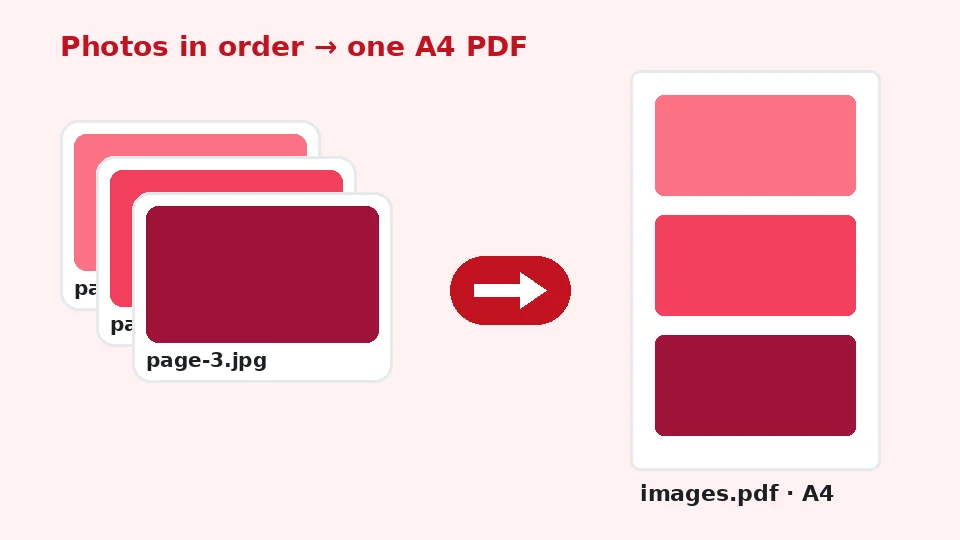
This free JPG to PDF converter builds documents directly in your browser. Add photos, scans or screenshots, drag them into the right order, choose the page size, orientation and margins, then download one combined PDF or a separate PDF for each picture. Nothing is uploaded and no watermark is added.
How to convert JPG to PDF in four steps
1. Add images
Drop JPG, PNG or WebP files, click to browse, or paste with Ctrl+V.
2. Arrange pages
Use the arrows to put pages in order; remove any you do not need.
3. Choose layout
Pick A4, Letter or fit to image, the orientation, margins and output.
4. Create and save
Press Create PDF and download one file, or separate PDFs as a ZIP.
What this free tool does
Page order control
Move pages up or down so the document reads correctly.
A4, Letter or fit
Standard paper sizes or pages that match each photo exactly.
Auto orientation
Landscape photos get landscape pages unless you choose otherwise.
Margins your way
None, small or large margins for printing or binding.
One PDF or many
Merge everything, or create one PDF per image and get a ZIP.
Fully private
Built on your device with no upload, account or watermark.
Who uses it
Receipts and expenses
Bundle receipt photos into one file for an expense claim.
Homework and forms
Send scanned pages or signed forms as a single document.
ID and applications
Combine front and back photos of a card for an application.
Portfolios
Share artwork or product photos as a tidy, printable PDF.
Free vs Pro: what you pay for
Free · this tool
JPG to PDF Converter
- Unlimited conversions
- Runs in your browser, no upload
- Batch up to 50 files and ZIP download
- No account, no watermark, no credits used
Pro credits · AI cloud tools
Enhance, upscale, restore
- Credits are only for AI cloud processing
- 5 free cloud credits every week with an account
- Charged only when a job succeeds
- Format tools like this one stay free
Why convert JPG to PDF?
Photos are easy to take but awkward to send. A dozen separate pictures of a contract, a set of receipts or a homework assignment arrive out of order, display at random sizes and are easy to lose. A PDF fixes all of that: the pages stay in sequence, print at a predictable size and open the same way on every phone and computer.
A PDF also protects the layout. Pictures sent on their own get cropped by chat apps, rotated by email previews and resized by upload forms, while a PDF page keeps its paper size, margins and orientation wherever it is opened. That predictability matters when someone needs to print your document, add a signature or attach it to a case file, and it saves the back-and-forth of explaining which picture belongs where. It is also easier to archive: one file per topic, searchable by name, instead of a camera roll full of similar pictures.
Many official portals, schools and employers also accept only PDF uploads. Turning your pictures into a document is often the difference between a submission that goes through and one that bounces back.
Which format to send
Choosing between PDF vs JPG depends on what happens next. A JPG is best for a single picture that will be viewed, edited or posted on social media. A PDF is better for anything with several pages, anything that will be printed, and anything a recipient needs to file or sign. When in doubt for paperwork, send a PDF.
How to use the JPG to PDF converter
Add your pictures by dropping them on the box, clicking to browse or pasting from the clipboard. Each image appears as a numbered page with a thumbnail, its pixel size and file size. Use the arrows to reorder pages and the cross to remove any you added by mistake.
Next, choose the layout. A4 is standard in most of the world, while US Letter suits North America. Fit to image creates pages that match each photo, which works well for artwork. Orientation can follow each image automatically or be fixed to portrait or landscape, and margins can be none, small or large.
One document or several
The Output option decides whether you get one document or many. To combine JPG files into one PDF, leave it on One PDF. If each picture needs to be its own document, for example separate invoices, choose Separate PDFs and download them together as a ZIP.
Page size, margins and image quality
Printing on standard paper
If you need JPG to PDF A4 size for printing or an official form, select A4 and small margins. Each photo is scaled to fit inside the margins without stretching or cropping and is centred on the page. Large margins leave room for hole punches or binding.
Keeping detail sharp
To convert JPG to PDF without losing quality, the tool embeds every image at its full pixel resolution and high JPEG quality. Zooming in on the PDF shows the same detail as the original photo. If a page looks blurry, the source photo itself was soft; our AI sharpen and unblur tools can help before you build the document.
Keeping the file small
Phone photos can be 4 to 8 MB each, so a long document can grow quickly. To reduce PDF size, shrink the pictures first with our image resizer or compressor, then add them here. A width of about 2,000 pixels is plenty for an A4 page and keeps most documents under an email attachment limit.
Other formats: PNG, WebP and JPEG
Although the tool is named for JPG, it accepts PNG and WebP too, and you can mix formats in one document. That makes it a handy PNG to PDF tool for screenshots and diagrams. Transparent areas in PNG or WebP files are placed on a white page so they print cleanly. A JPEG to PDF conversion works exactly the same way, since JPEG and JPG are one format with two spellings.
If you have dozens of scans, multiple JPG to PDF conversion is just as easy as a single page: select up to 50 images in one go and arrange them before building the document.
On phones and computers
To make a PDF from photos on a phone, open this page in Safari or Chrome. For JPG to PDF on iPhone, tap the drop area, choose pictures from Photos or Files, arrange them, and use the share sheet to save the PDF to Files or send it straight away. Android works the same way in Chrome.
If you want to convert JPG to PDF on Windows, you could use the Print to PDF printer, but it offers little control over order and margins. This page runs in Edge, Chrome or Firefox without installing anything, and the same goes for Mac and Chromebook.
A single page in seconds
For a one-off job, such as when you need to save a photo as PDF for an online form, add the single image, keep A4 and small margins, and press Create PDF. The whole process takes a few seconds.
Tips for clean, professional documents
Photograph pages well
Good input makes a good document. Lay the page flat in even daylight, hold the phone directly above it, and fill the frame so the paper edges are just visible. Avoid shadows from your hand and turn off the flash, which creates a bright spot in the middle of glossy paper. If a picture is crooked, crop and straighten it before adding it here; our cropper keeps everything on your device as well.
Choose sizes that match the destination
Use the paper size the recipient expects: A4 for most of Europe, Asia, Africa and Australia, US Letter for the United States and Canada. Schools and government portals sometimes state a maximum upload size, so check the limit before you build a long document. Fit to image is best for photo books and artwork, because nothing is scaled down to fit a sheet.
Name the file clearly
Small details help the person who receives your file. A single combined document is named images.pdf by default, so rename it to something descriptive, such as 2026-expenses-october.pdf, before sending it on. Clear names make documents easier to find later and show the recipient at a glance what you have sent.
If something does not work
If an image is rejected, check that it is a real JPG, PNG or WebP file; some phones save HEIC pictures with a misleading name, and our HEIC converter can turn those into JPG first. Damaged downloads cannot be opened, so fetch them again. On older phones, very large batches may take a little longer, so split them into two or three smaller documents if needed.
Private, free and unlimited
Unlike many an online image to PDF converter, this one never sends your files to a server. Passports, bank statements and medical papers stay on your device, and the PDF is assembled in your browser's memory. The PDF engine only loads when you press Create PDF, which keeps the page fast. There is no account, no watermark and no daily cap, and it uses none of your EnhancerPro credits.
Frequently asked questions
Related tools
Need sharper, bigger or restored photos?
Our AI tools enhance, upscale and repair images for free on your device, with optional cloud processing on Pro credits.