
Crop an Image to Square, Portrait or Wide
Cut a photo to the exact shape a profile picture, feed post, slide or print needs, without uploading it.
- Runs in your browser
- No upload, no account
- Four common ratios
- Original untouched
- No watermark
Most cropping is about shape rather than art: a square avatar, a tall post that fills a phone screen, a wide banner, a classic 3:2 print. This cropper takes the centre of your photo at the ratio you choose and saves it as a new file, leaving the original untouched. It runs entirely in your browser. The guide below lists which ratio fits which platform, how to keep the subject in the frame when cropping from the centre, and when cropping is better than resizing.
How to crop an image in 4 steps
1. Choose a photo
Pick a JPEG, PNG or WebP file.
2. Pick a frame
Square, Portrait 4:5, Wide 16:9 or Photo 3:2.
3. Crop from centre
The largest area of that shape is cut from the middle.
4. Download
Save the new file; the original stays as it was.
What this free tool does
Four ready ratios
1:1, 4:5, 16:9 and 3:2 cover most profiles, posts, slides and prints.
Largest possible crop
Keeps as many pixels as the shape allows.
Centred framing
Predictable results for subjects in the middle of the shot.
No quality loss from scaling
Pixels are cut, not stretched.
Private
The photo never leaves this browser tab.
Free and unlimited
No account, no watermark.
Who uses it
Profile pictures
Square crops for avatars and contact photos.
Social feeds
4:5 portrait posts that take more screen space.
Slides and video
16:9 frames for presentations and thumbnails.
Prints
3:2 crops that match 4 × 6 inch paper.
Free vs Pro: what you pay for
Free · this tool
Image Cropper
- Unlimited and free
- Runs in your browser, no upload
- One file at a time with an instant preview
- No account, no watermark, no credits used
Pro credits · Pro AI tools
Enhance, upscale, restore
- Credits are only for Pro AI processing
- 5 free Pro credits every week with an account
- Charged only when a job succeeds
- Format tools like this one stay free
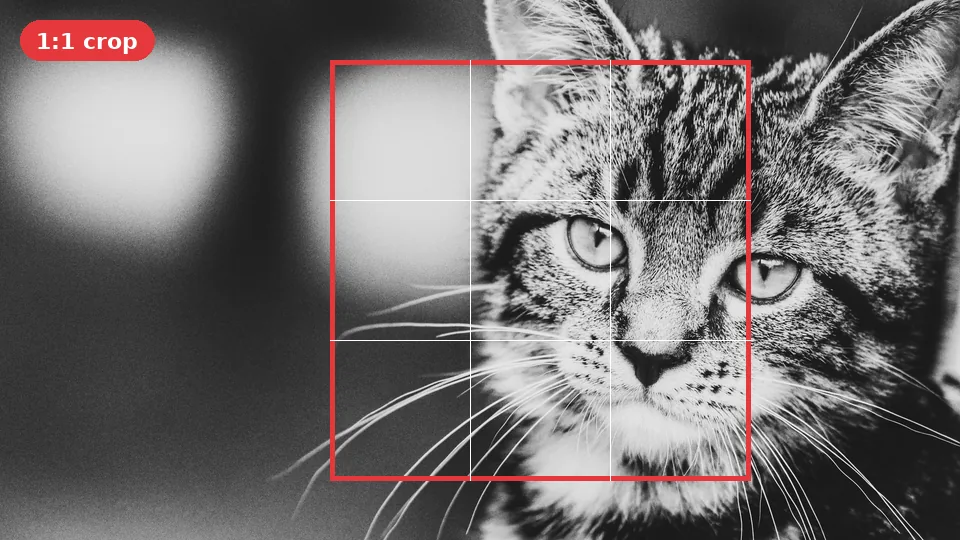
Which aspect ratio for which use
Aspect ratio is width compared with height. Choosing it first saves you from awkward automatic crops later.
| Ratio | Shape | Typical uses |
|---|---|---|
| 1:1 | Square | Profile pictures, product grids, many social posts |
| 4:5 | Tall portrait | Portrait feed posts that fill more of a phone screen |
| 16:9 | Wide | Slides, video thumbnails, TV and monitor wallpapers |
| 3:2 | Classic photo | Most camera sensors and 4 × 6 inch prints |
Platforms change their recommended sizes from time to time, so check the current guidance for a specific network; the ratio usually matters more than the exact pixel count.
Getting a good centred crop
This tool crops from the centre, which suits portraits, products and most casual photos. When the subject sits off to one side, a little preparation helps.
- Frame the subject near the middle when you take the photo if you know it will be cropped.
- Crop a wide shot to 16:9 before a square, so you can see how much room you have.
- For a subject at the edge, use the image editor or rotate tool first, then crop here.
- Leave space above heads in portraits; tight crops look cramped as avatars.
Cropping versus resizing
Cropping removes the edges of the picture and keeps the remaining pixels at full quality. Resizing keeps the whole picture but changes how many pixels it has. If a platform needs a particular shape, crop. If it needs a smaller file or a maximum width, resize. Many jobs need both, in that order: crop to the ratio, then resize to the pixel size.
Output format
Cropped images are saved as high-quality WebP, which keeps files small and opens in every modern browser and most apps. If you need JPEG or PNG for a specific upload form, run the crop through the image converter afterwards.
Privacy
Because cropping happens in your browser, the photo is never uploaded. That makes it safe for ID photos, family pictures and screenshots you would not want on a server.
Composition tips for a stronger crop
A crop is the cheapest way to improve a photo. A few long-standing composition habits make the difference between a crop that feels deliberate and one that feels accidental.
- Place the main subject roughly a third of the way in from an edge rather than dead centre, unless symmetry is the point.
- Leave a little space above heads. Cutting through the top of the skull looks intentional in a tight portrait, but awkward elsewhere.
- Give moving subjects room to move into: leave more space in front of a person walking or a car driving.
- Avoid cutting limbs at joints such as wrists, knees and ankles.
- Check the edges for distractions, such as half a lamp post or a stranger’s elbow, and crop them out.
One photo, several platforms
If the same photo will appear in several places, crop each version from the original rather than from a previous crop. Cropping a square from an already cropped 16:9 version throws away pixels you might have needed.
| Use | Common ratio | Tip |
|---|---|---|
| Profile picture | 1:1 | Centre the face with space around it; many sites show it as a circle |
| Feed post | 4:5 or 1:1 | Taller crops fill more of a phone screen |
| Story or reel cover | 9:16 | Keep text and faces away from the top and bottom edges |
| Video thumbnail or banner | 16:9 | Leave room for titles on one side |
| Standard photo print | 2:3 for 4 × 6 | Match the paper ratio to avoid white borders |
Save each version with the ratio in the file name, such as beach_1x1.jpg, so you can find the right one later.
Crop first, then fix
If a photo also needs enhancing or enlarging, crop it first. Every later tool then spends its effort only on the part you keep, and an upscale starts from the right shape. A tight crop of a small area may leave too few pixels for the size you need; the print size calculator tells you whether that is the case, and Upscale image can make up a moderate shortfall.
Straighten before you crop as well. A tilted horizon corrected after cropping forces a second, tighter crop and loses more of the edges.
Frequently asked questions
Related tools
Need sharper, bigger or restored photos?
Our AI tools enhance, upscale and repair images for free on your device, with optional Pro AI processing on credits.