
PDF to JPG Converter: Every Page as an Image
Turn PDF pages into sharp JPG images on your own device, with no upload and no waiting in a queue.
Drop PDF files here, or click to choose
PDF files · up to 50 files · 50 MB each · Ctrl+V to paste · nothing is uploaded
Leave Pages empty to convert every page.
- Runs in your browser
- No upload, no account
- Free and unlimited
- No watermark
- Batch + ZIP download
This free PDF to JPG converter renders the pages you choose straight to images in your browser. Add one or several documents, convert every page or just a range like 1-3, 7, pick a resolution from screen to print, and download single pictures or a ZIP. Your files never leave this device, so contracts and statements stay private.
How to convert PDF to JPG in four steps
1. Add a PDF
Drop one or more PDFs on the box, click to browse, or paste a file.
2. Choose pages
Leave Pages empty for all of them, or type a list such as 1-3, 5.
3. Set resolution
Pick 72 to 300 DPI and a JPG quality that suits the job.
4. Download
Save a single page or every image in one ZIP archive.
What this free tool does
Page ranges
Convert the whole document or only the pages you name.
Up to 300 DPI
Screen-friendly 72 DPI or print-ready 300 DPI output.
Quality slider
Balance detail against file size before you convert.
Several PDFs at once
Queue multiple documents and get one ZIP per file or for all.
Clear errors
Password-protected or damaged PDFs are flagged with a plain message.
Private rendering
Pages are drawn by your browser; nothing is uploaded or stored.
Who uses it
Slides and decks
Drop a page into PowerPoint, Keynote or Google Slides as a picture.
Social and chat
Share a flyer or menu page where PDFs will not preview.
Websites and CMS
Post a page as an image in a blog or product listing.
Records and forms
Attach a page to a portal that only accepts images.
Free vs Pro: what you pay for
Free · this tool
PDF to JPG Converter
- Unlimited conversions
- Runs in your browser, no upload
- Batch up to 50 files and ZIP download
- No account, no watermark, no credits used
Pro credits · AI cloud tools
Enhance, upscale, restore
- Credits are only for AI cloud processing
- 5 free cloud credits every week with an account
- Charged only when a job succeeds
- Format tools like this one stay free
Why turn a PDF into images?
PDF is perfect for printing and for keeping a layout fixed, but plenty of places will not accept it. Presentation apps want a picture, social networks and messaging apps do not preview documents, and many website builders reject PDF uploads for inline content. Converting a page to an image solves all of these in one step, because a JPG opens in every browser, phone, editor and photo viewer.
Images are also easier to crop, annotate and drop into other documents. A single page from a brochure, a chart from a report or a signed form becomes something you can place anywhere rather than a file people have to download and open.
JPG or PNG for documents?
JPG keeps file sizes small and suits pages with photos, gradients and scans. If a page is mostly crisp text and flat colours and you need pixel-perfect edges, PDF to PNG gives slightly sharper lettering at a larger size. For most sharing jobs, a high-quality JPG is the practical choice, and that is what this tool produces.
How the PDF to JPG converter works
When you add a document, the page loads a PDF rendering engine, the same open-source pdf.js library used by Firefox's built-in viewer. It reads the file in your browser, counts the pages and shows a thumbnail of the first one. When you press Convert, each selected page is drawn onto a canvas at the resolution you chose and encoded as a JPEG.
Because nothing is sent over the network, there is no upload wait and no queue. The engine is loaded only after you add a file, which keeps the page itself light for everyone who just wants to read about the tool.
Choosing pages
The Pages box accepts single numbers and ranges separated by commas, for example 1-3, 5, 9-. An open range such as 9- runs to the last page. Leave it empty to convert the whole document. If a number is beyond the end of the file it is ignored, and if nothing matches you will see a clear message instead of an empty download.
Long documents and ZIP files
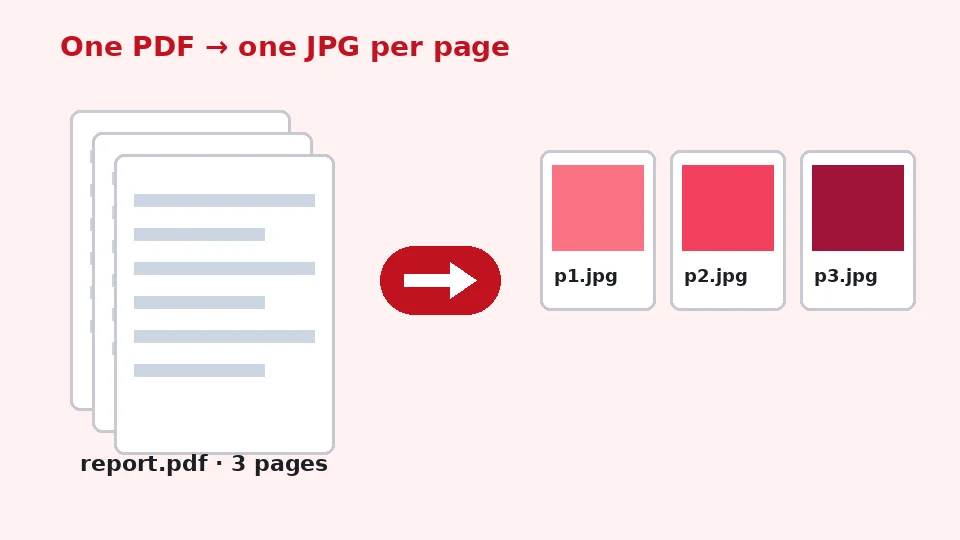
A multi-page PDF to JPG conversion produces one image per page, named after the file and page number so they sort correctly, such as report-page-1.jpg. When there is more than one page, a ZIP button bundles them so you do not have to save dozens of files one by one.
Resolution, DPI and quality
Picking the right DPI
PDF pages are measured in points, 72 to the inch. At 72 DPI an A4 page becomes about 595 by 842 pixels, fine for a quick preview. 150 DPI doubles that and suits most screens and slides. Choose 200 for zoomable images, and select PDF to JPG 300 DPI output when the image will be printed or when small text has to stay readable.
Keeping text sharp
To convert PDF to JPG without losing quality you can see, combine a higher DPI with a quality setting of 90 or more. Vector text and drawings are rendered fresh at the size you pick, so they stay crisp rather than being blown up from a small image. If you need PDF to JPG high resolution for a poster or a detailed technical drawing, 300 DPI is the safe choice, although files will be larger.
Balancing file size
Higher resolution means more pixels and bigger files. A full-page image at 300 DPI can weigh several megabytes, while the same page at 150 DPI and quality 85 is often under half a megabyte. The size column shows the total for each document so you can decide whether to go up or down.
Converting on any device
The tool works in current Chrome, Edge, Firefox and Safari. If you want to convert PDF to JPG on Mac, Preview can export one page at a time, but this page handles ranges, several files and ZIP downloads in one pass. To convert PDF to JPG on Windows, there is no built-in option at all, and this page needs no installation or administrator rights.
Phones work as well. For PDF to JPG on iPhone, open the page in Safari, tap the drop area, choose a file from the Files app, convert, then use the share sheet to save the images to Photos. Android behaves the same way in Chrome. Very long documents at 300 DPI can take a while on older phones, so convert in smaller ranges if things feel slow.
Saving a single page quickly
If you only need to save PDF as JPG for one page, for example a ticket or a certificate, type that page number, keep 150 DPI and press Convert. A single result downloads directly without a ZIP, ready to attach or share straight away.
What this tool does not do
This converter renders whole pages. It does not pull out the original photos embedded inside a document, so if you want to extract images from PDF files at their exact source resolution, a dedicated PDF editor is the better option. It also cannot open documents that are locked with a password; you will see a message asking you to remove the password in your PDF reader first.
JPEG to PDF in the other direction is available too: use our JPG to PDF converter to combine pictures back into a single document. JPG and JPEG are the same format, so a PDF to JPEG request is exactly what this page delivers.
Tips for better page images
Crop what you need
Pages often include wide white margins. After converting, use our image cropper to trim them, which makes the picture easier to read in a slide or a chat thread and reduces the file size at the same time.
Scanned documents
If a PDF is itself a scan, raising the DPI beyond the original scan resolution will not add detail. 150 to 200 DPI is usually enough. If the scan is blurry or faint, our AI tools for blurry text can make lettering easier to read after conversion.
Name and organise the results
Each image is named after the original document and its page number, which keeps a set in order when you sort by name. If you convert several documents at once, give them clear file names first, such as invoice-march.pdf, so the images that come out are easy to tell apart later. It is a small habit that saves a lot of searching when you need a particular page again months from now.
Colours and backgrounds
Pages are rendered on a white background, just as they would print. Transparent areas in the PDF therefore become white, which is what most people expect from a document. Colours are reproduced by your browser, so a page converted on a laptop and on a phone should look the same. If a page uses unusual fonts that are not embedded in the file, the browser picks the closest match, which can shift lettering slightly, so check important pages before sharing them.
Privacy
Everything happens in your browser memory and disappears when you close the tab. There is no account, no watermark and no daily cap, and the tool never uses your EnhancerPro credits.
Frequently asked questions
Related tools
Need sharper, bigger or restored photos?
Our AI tools enhance, upscale and repair images for free on your device, with optional cloud processing on Pro credits.