
WebP to JPG Converter, Free and Private
Turn WebP images into JPG files that open everywhere, right in your browser, with nothing uploaded.
Drop WebP files here, or click to choose
WebP files only · up to 50 files · 50 MB each · Ctrl+V to paste · nothing is uploaded
- Runs in your browser
- No upload, no account
- Free and unlimited
- No watermark
- Batch + ZIP download
This free WebP to JPG converter works on your own device. Drop in one image or a whole folder, choose the JPG quality, pick a fill colour for any see-through areas, and download each file or a single ZIP. Your pictures never travel to a server, so it is quick and private.
How to convert WebP to JPG in four steps
1. Add your files
Drag WebP images onto the box, click to browse, or paste one with Ctrl+V.
2. Set the options
Choose a quality level and the colour that replaces transparent pixels.
3. Convert
Press Convert to JPG. Each image is redrawn and encoded on your device.
4. Download
Save files one at a time or grab every result in one ZIP archive.
What this free tool does
No upload at all
Decoding and encoding happen in this tab, which you can confirm in your browser's network panel.
Many files at once
Add up to 50 images in a single pass and keep their original names.
Quality control
A slider from 50 to 100 lets you trade file size against fine detail.
Clean transparency
Pick white, black or any brand colour for areas a JPG cannot keep see-through.
Size before and after
Every row shows the original and new size so there are no surprises.
ZIP in one click
Bundle every converted image into one archive, built locally.
Who uses it
Older apps and kiosks
Some editors, office suites and photo kiosks still refuse WebP.
Email and forms
Upload portals that only list JPG accept the converted file first time.
Design hand-offs
Send a universally readable picture to a client or printer.
Saved web images
Make a picture you saved from a site usable in any program.
Free vs Pro: what you pay for
Free · this tool
WebP to JPG Converter
- Unlimited conversions
- Runs in your browser, no upload
- Batch up to 50 files and ZIP download
- No account, no watermark, no credits used
Pro credits · AI cloud tools
Enhance, upscale, restore
- Credits are only for AI cloud processing
- 5 free cloud credits every week with an account
- Charged only when a job succeeds
- Format tools like this one stay free
Why convert WebP to JPG?
WebP is the image format many websites now serve because it keeps pictures small. That is great for page speed, but it can be annoying once you save the picture yourself. Plenty of desktop programs, older phones, print shops and upload forms still expect a JPEG. When you need to open WebP files in a tool that only understands the classic formats, converting them is the quickest fix.
JPG has been around since the early 1990s, and nearly every camera, editor, browser and operating system reads it. Converting gives you a file you can attach, print, edit or archive without checking whether the next app supports it first.
JPG or JPEG: is there a difference?
Yes. JPG and JPEG name the same format; the shorter spelling dates back to old Windows systems that limited extensions to three letters. Whether a form asks for WebP to JPEG or JPG, the file this tool creates will satisfy it, and you can rename .jpg to .jpeg if a system insists.
How the conversion works on your device
When you add a picture, your browser decodes it with its built-in image engine. The tool paints the pixels onto an invisible canvas and asks the browser to encode that canvas as a JPEG at the quality you picked. Nothing is sent over the network, so speed depends on your own computer rather than on a queue somewhere else.
Because the work stays local, the tool keeps running even if your connection drops after the page has loaded. That also means there is no limit on how many times you can use it in a day.
Converting many files in one go
If you need to batch convert WebP to JPG, drop a whole selection onto the box. Each file is processed in turn, a progress bar shows how far along you are, and once two or more are done a single button packs them into a ZIP. Duplicate names are numbered automatically so nothing gets overwritten.
Quality, file size and transparency
Getting the best result
Both formats compress images, so every conversion re-encodes the picture. To convert WebP to JPG without losing quality you can see, keep the slider at 90 or above. At 92, the default, most photos look identical to the source. Lower values shrink the file further and suit thumbnails or quick previews.
Expect the JPG to be larger than the original. WebP usually stores the same scene in fewer bytes, so a jump of 20 to 60 percent is normal. If the new file is too heavy for an upload limit, lower the quality a little or run it through our compressor afterwards.
Handling see-through areas
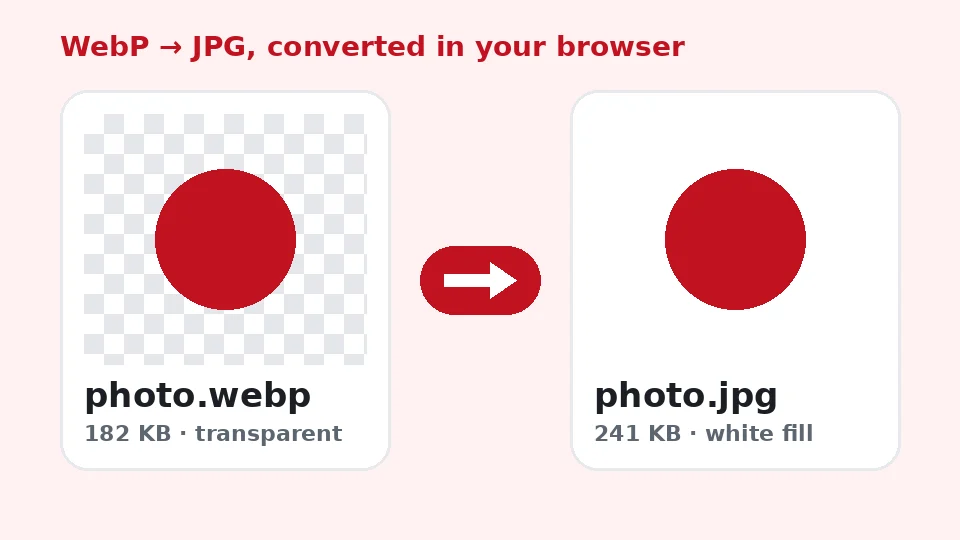
WebP can carry an alpha channel, but JPG cannot. When you convert a transparent WebP to JPG, every see-through pixel must become a solid colour. Most converters silently fill it with black, which ruins logos and cut-out product shots. Here you choose the fill yourself: white for documents and marketplaces, black for dark themes, or an exact brand colour from the picker.
Why sizes change
WebP file size is small because the format uses newer prediction and entropy coding than JPEG. The tool shows the size before and after for every image so you can decide whether the trade suits the job. If you only need a smaller picture rather than a different format, the compressor is the better choice.
Using the WebP to JPG converter on any device
The page works in current versions of Chrome, Edge, Firefox and Safari. If you want to convert WebP to JPG on Mac, open this page in Safari or Chrome and drag the files from Finder; Preview can also export single pictures, but it handles one at a time. To convert WebP to JPG on Windows, the Photos app will not batch the job, while this page will, with no installation and no administrator rights.
Phones work too. To change WebP to JPG on iPhone, tap the drop area, choose the pictures from Photos or Files, convert, and use the share sheet to save the results. Android behaves the same way in Chrome.
Saving pictures straight from a website
Browsers often hand you a WebP when you right-click and save an image, even if the page looked like it showed a normal photo. Rather than hunting for a browser extension that lets you save WebP as JPG, keep this tab open: download the picture as usual, drop it here, and you are done in seconds. Please respect the copyright of images you save from other sites.
Which format should you keep?
In the WebP vs JPG debate, the honest answer is that both have a place. For a website you control, WebP usually wins, because pages load faster and it supports transparency and animation. For sharing, printing, editing in older software and long-term archives, JPG is the safer bet thanks to its near-universal support.
So is WebP better than JPG? Technically it is more efficient, often saving a quarter to a third of the bytes at similar visual quality. Practically, the best format is the one the next person or program can open. Keep your original WebP if you have the space, and convert copies when you need compatibility.
When converting is not the answer
If a picture is blurry, noisy or small, changing its format will not fix that, since the converter copies pixels faithfully. For those problems, try our AI tools, which can sharpen detail or enlarge an image while keeping it true to the original. They run free on your device, with optional cloud processing for tougher photos.
Tips for clean, reliable results
Pick the right quality for the job
Think about where the picture is going before you move the slider. Printing a photo or sending it to a client calls for 90 to 95. A product listing, a blog image or an email attachment looks fine at 85. Thumbnails, previews and chat messages can drop to 70 without anyone noticing. Converting the same image twice at different settings and comparing the sizes takes only a moment, and it is the quickest way to learn what your own pictures need.
Keep the originals
Every JPEG save throws away a little information, so it is best to convert from the original each time rather than re-saving a JPG over and over. Store the source files in a folder you do not edit, and treat the converted copies as disposable. If you later need a different quality or background colour, you can start again from a clean source instead of compounding losses.
If something goes wrong
If a file is rejected, check that it really is WebP; some sites serve AVIF or PNG with a misleading name, and the tool reads the file header rather than trusting the extension. Damaged or partly downloaded files cannot be decoded, so download them again. If a large batch feels slow on an older phone, split it into smaller groups. Animated images become a single still frame, which is expected because JPG has no animation support.
Privacy and limits
Your images are never uploaded, logged or stored. Closing the tab clears everything from memory. Each file can be up to 50 MB and a batch can hold 50 files; very large images may take a few seconds on older phones, but there is no daily cap and no watermark. The converter is completely free and does not use any of your EnhancerPro credits.
Frequently asked questions
Related tools
Need sharper, bigger or restored photos?
Our AI tools enhance, upscale and repair images for free on your device, with optional cloud processing on Pro credits.