
Favicon Generator: ICO, PNG Icons and Manifest
Create every icon your website needs from one logo, with live previews and the HTML ready to paste.
- Runs in your browser
- No upload, no account
- Free and unlimited
- ICO + PNG + manifest
- One ZIP download
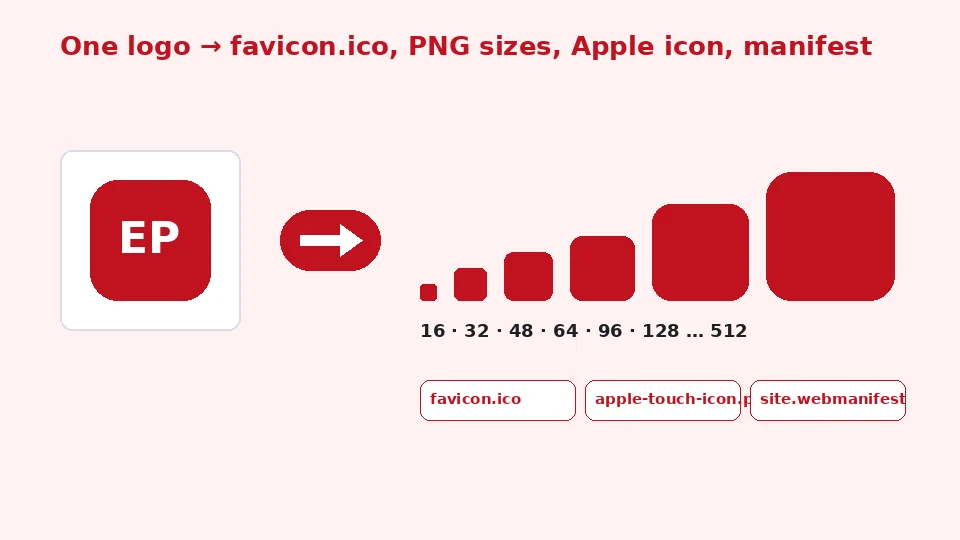
This free favicon generator turns one logo or image into a complete icon set: a multi-size favicon.ico (16, 32 and 48 px), PNG icons from 16 to 512 px, a 180 px Apple touch icon, Android icons, a site.webmanifest and the HTML tags for your head section. Adjust padding, background and rounded corners with live previews, then download one ZIP. Nothing is uploaded.
How to create a favicon for your website
1. Add your logo
Drop a square PNG or SVG, ideally 512×512 or larger.
2. Adjust
Set background, padding and corner radius while previewing.
3. Download
Get the ZIP with ICO, PNGs, Apple icon and manifest.
4. Install
Upload the files to your site root and paste the HTML.
What this free tool does
Multi-size ICO
favicon.ico with 16, 32 and 48 px images inside.
All PNG sizes
16 to 512 px, including Android 192 and 512.
Apple touch icon
180 px icon with a solid background for iOS.
Web manifest
Ready site.webmanifest with name and theme colour.
Live previews
See tiny sizes on light and dark tabs.
SVG input
Vector logos are sanitised and rendered sharply.
Who uses it
New websites
Ship a complete icon set on day one.
Rebrands
Replace every icon in one step.
Web apps and PWAs
Icons and manifest for home screen installs.
Docs and side projects
A professional tab icon in a minute.
Free vs Pro: what you pay for
Free · this tool
Favicon Generator
- Unlimited favicon packages
- Runs in your browser, no upload
- ICO, PNG sizes, Apple and Android icons, manifest
- No account, no credits used
Pro credits · Pro AI tools
Enhance, upscale, restore
- Credits are only for Pro AI processing
- 5 free Pro credits every week with an account
- Charged only when a job succeeds
- Format tools like this one stay free
What is a favicon?
A favicon is the small icon that appears in browser tabs, bookmarks, history lists and search results next to your site name. On phones, larger versions appear on the home screen when someone saves your site. A clear icon makes your site easy to find among dozens of open tabs and looks more professional.
Different places need different sizes and formats. Browsers still look for favicon.ico, Apple devices use a 180 px PNG, Android and installable web apps read icons from a web manifest, and search engines prefer icons of at least 48 px.
The sizes you need
With favicon sizes explained in one line each: 16 and 32 px are for browser tabs, 48 px for Windows and search results, 180 px for Apple touch icons, 192 and 512 px for Android and web app manifests. This generator creates all of them, plus 64, 96, 128, 256 and 384 px versions for other uses.
How to use the favicon generator
Add a logo, ideally square and at least 512 by 512 pixels. A PNG with a transparent background or an SVG gives the sharpest results. Choose a transparent or solid background, add padding if the artwork touches the edges, and round the corners if you want an app-style icon. The previews show the icon at 16, 32, 48 and 180 px on both light and dark backgrounds, so you can judge how it looks in real tabs.
Enter your app name and theme colour for the manifest, then press Download favicon package. You can also download just the favicon.ico or a 512 px PNG.
Starting from a PNG
To create favicon from PNG artwork, start with the largest version you have. Downscaling a large image produces crisp small icons, while upscaling a tiny image produces blur. If your logo is wide, consider using only its symbol or initial, since text becomes unreadable at 16 px.
What is in the ZIP
favicon.ico
The favicon.ico file is created with a PNG to ICO conversion that stores 16, 32 and 48 px images inside one file. Modern browsers and Windows read PNG-compressed icons, which keeps the file small and the edges clean.
Apple devices
The Apple touch icon size is 180 by 180 pixels. iOS fills transparent areas with black, so when your background is transparent, the generator automatically gives this icon a solid background using your theme colour.
Android and web apps
The web manifest icons in site.webmanifest are 192 and 512 px PNGs, including a maskable version for Android, which crops icons into circles or rounded squares. Keep important artwork inside the central 80% of the icon so nothing is cut off.
Installing the icons
Unzip the package and upload the files to the root folder of your website, the same place as your home page. Then copy the HTML snippet into the head section of every page, or into your site template. The snippet links the ICO, the 16 and 32 px PNGs, the Apple icon and the manifest.
Website builders and content systems often have a site icon setting instead. In that case, upload the 512 px PNG there, and the platform will create other sizes itself.
Troubleshooting
When you find your favicon not showing after an upload, browsers may be using a cached version. Open the icon URL directly, then reload your page with a hard refresh, or try a private window. Search engines can take days or weeks to update the icon in search results.
Design tips for small icons
Simplify. At 16 by 16 pixels, fine lines and small text disappear. Use a bold symbol, a single letter or a simplified version of your logo, with strong contrast. Check both the light and dark previews: a dark logo on a transparent background can vanish on a dark browser theme, which is a good reason to add a solid background or a light outline.
Consistency matters too. Use the same colours as your brand, which you can sample with our colour picker, and keep the icon recognisable across sizes.
Privacy and formats
Images are processed in your browser and never uploaded. SVG files are cleaned of scripts and external references before rendering. PNG, JPG, WebP, GIF and SVG inputs are supported. The tool is free and unlimited and does not use EnhancerPro credits.
Next steps
If your logo exists only as a pixel image, our image to SVG converter can create a vector version, and our SVG to PNG tool exports vector logos at any size.
Favicons for different platforms
Browser tabs
Desktop browsers usually show the 16 or 32 px icon in tabs, and the 32 px version on high-resolution screens. Chrome and Edge also use the larger PNG icons for shortcuts and the new tab page. Because these sizes are tiny, check the 16 px preview carefully; if the icon looks muddy, simplify the artwork or increase the padding slightly.
Search results
Search engines show a favicon next to your site in results on mobile and desktop. They prefer a square icon that is a multiple of 48 px and is reachable by their crawlers. Linking the icons in the head of your home page, as in the generated snippet, is the standard way to make them easy to find.
Home screens
When people add your site to their phone's home screen, iPhones use the Apple touch icon and Android phones use the icons from the manifest. Both look best with a solid background and a bit of padding, so the symbol does not touch the rounded corners that the system adds.
Dark mode
Many people use dark browser themes. A black logo on a transparent background disappears there. The dark preview in the tool shows this immediately. A solid background colour, a light outline or a two-colour version of the logo keeps the icon visible everywhere.
Updating an existing icon
When you replace a favicon, keep the same file names so existing links keep working. Browsers cache icons aggressively, so the new one may take a while to appear for returning visitors. Adding a version query, such as favicon.ico?v=2, to the links in your HTML forces browsers to fetch the new files.
Checklist before publishing
Before you publish, check four things. The favicon.ico file opens in a browser at your-domain/favicon.ico. The HTML snippet is in the head of your home page. The Apple icon has a solid background and looks good when you add the site to an iPhone home screen. The manifest name and theme colour match your brand. With those in place, your icon will appear consistently in tabs, bookmarks, search results and home screens, and visitors will recognise your site at a glance.
Keeping source files
Keep the original logo and the ZIP together in your project. When you change colours or redesign the logo later, you can regenerate the full set in a minute with the same settings, and every size will stay consistent. Store the theme colour you used as well, so the manifest and icons match your brand again. A tidy folder with the logo, the settings and the generated files saves time for anyone who maintains the site after you, including your future self.
Frequently asked questions
Related tools
Need sharper, bigger or restored photos?
Our AI tools enhance, upscale and repair images for free on your device, with optional Pro AI processing on credits.