
Image to Base64 Converter and Decoder
Turn small images into copy-ready data URIs and code snippets, or decode Base64 text back into a downloadable picture.
- Runs in your browser
- No upload, no account
- Free and unlimited
- Encode and decode
- Copy-ready snippets
Convert image to Base64 in one step: drop a PNG, JPG, WebP, GIF, SVG or ICO file and get the raw Base64 string, a data URI, an HTML img tag, a CSS background rule and Markdown, each with a copy button. Switch to Base64 to image to paste a string and get the picture back with its type and size. It all runs in your browser.
How to convert an image to Base64
1. Add an image
Drop a file, browse, or paste with Ctrl+V.
2. Pick a snippet
Data URI, raw Base64, img tag, CSS or Markdown.
3. Copy
Copy the snippet and paste it into your code.
4. Or decode
Paste Base64 text in the second tab to get the image back.
What this free tool does
Five snippet formats
Data URI, raw Base64, HTML, CSS and Markdown.
Decode too
Base64 or data URI back to a downloadable image.
Type detection
Real file type is detected from the bytes.
Size insight
See the original and encoded size side by side.
Many formats
PNG, JPG, WebP, GIF, BMP, SVG, ICO and AVIF.
Private
Files and text never leave your browser.
Who uses it
HTML emails
Embed tiny logos where linked images are blocked.
Single-file demos
Ship a page or prototype with no extra files.
CSS icons
Inline small backgrounds to save a request.
Debugging APIs
Check what an encoded image field really contains.
Free vs Pro: what you pay for
Free · this tool
Image to Base64 Converter
- Unlimited conversions
- Runs in your browser, no upload
- Data URI, HTML, CSS and Markdown snippets
- No account, no credits used
Pro credits · Pro AI tools
Enhance, upscale, restore
- Credits are only for Pro AI processing
- 5 free Pro credits every week with an account
- Charged only when a job succeeds
- Format tools like this one stay free
What is Base64?
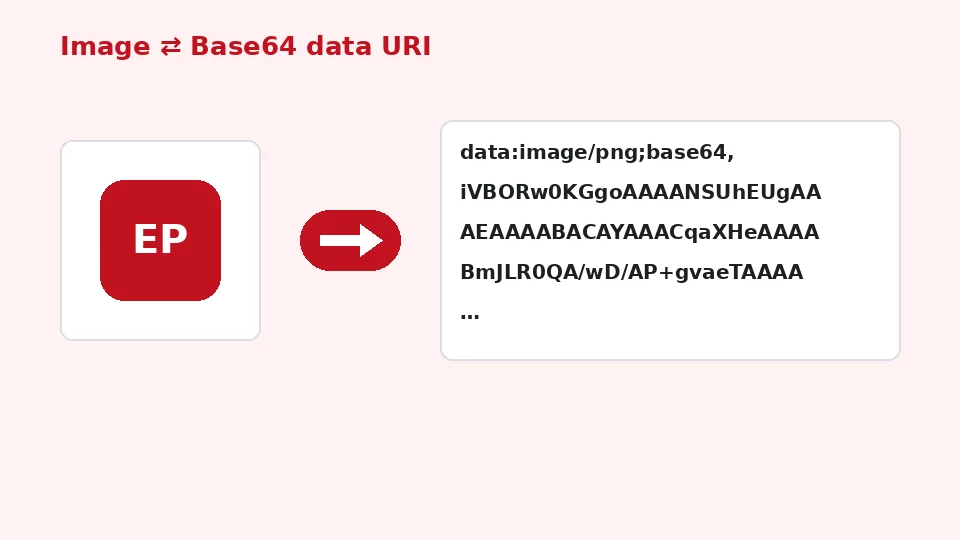
Base64 is a way of writing binary data, such as an image file, using only 64 safe text characters: letters, digits, plus and slash. Every three bytes of the file become four characters of text. That lets binary content travel through systems that only handle text, such as JSON, HTML attributes, CSS files and some email formats.
A data URI wraps that text with a short header that tells the browser what it contains, for example data:image/png;base64, followed by the encoded file. Browsers can display it exactly like a normal image link.
When to inline
When weighing Base64 vs image file links, the trade-off is size and caching. Base64 text is about a third larger than the original file, and it cannot be cached separately by the browser. A normal file is downloaded once and reused. Base64 shines for very small images, where saving an extra request matters more than a few hundred bytes.
How to convert image to Base64 here
Add an image to the Image to Base64 tab. The tool reads it locally, detects its real type from the file bytes and shows the original size, the encoded size and the increase. Below are five ready-made snippets with copy buttons. Very long strings are shortened in the boxes for speed, but the copy button always copies the complete text.
You can also download the data URI as a text file, which is handy for very large strings or when you need to send them to a colleague.
Common formats
PNG to Base64 is the most common case, because icons and logos are usually PNG files with transparency. JPG to Base64 works the same way and suits small photos such as avatars. SVG files are encoded as well; for SVG, plain URL-encoded text can be even smaller, but Base64 is the most compatible option.
Using the snippets
In HTML
To use a Base64 image in HTML, paste the img snippet into your page. It already includes alt text based on the file name and the width and height, which helps prevent layout shifts. Edit the alt text so it describes the image for screen readers.
In CSS
For a Base64 background image in CSS, paste the background-image rule into your stylesheet. This suits small patterns and icons. Keep large photos as files, because inlining them makes the whole stylesheet slower to download and parse.
Markdown and JSON
The Markdown snippet works in many editors and documentation tools that accept data URIs. For APIs and JSON, use the Base64 only snippet, without the data: header, unless the API documentation asks for a full data URI.
Decode Base64 to image
Switch to the Base64 to image tab and paste a raw Base64 string or a complete data URI. The tool removes whitespace and line breaks, accepts URL-safe characters, adds missing padding, decodes the text and checks the first bytes to recognise the real image type. You then see the picture, its dimensions and size, and a download button with the correct file extension.
If the text is not valid Base64, is cut off or contains a different kind of file, a clear message explains what went wrong. This makes the decoder useful for debugging API responses, database fields and email source code.
Size, performance and best practice
As a rule of thumb, inline images smaller than a few kilobytes and keep everything else as files. The tool warns you when an image is larger than 100 KB, because embedding it would make your HTML or CSS heavy. For bigger images, compress them first with our compress image tool or convert them to WebP.
Base64 is an encoding, not encryption. Anyone can decode it, so never treat it as a way to hide or protect an image.
Privacy
Encoding and decoding happen entirely in your browser using built-in functions. Nothing is uploaded or stored, and the tool is free, unlimited and does not use EnhancerPro credits.
Common questions from developers
Why is my string so long?
Each three bytes become four characters, so a 30 KB image becomes about 40,000 characters. That is expected. If it is too long for your use, reduce the image dimensions or compress it before encoding.
Line breaks and email
Some email systems wrap Base64 into lines of 76 characters. The decoder ignores those line breaks automatically, so you can paste wrapped text directly.
Favicons and icons
Inlining a favicon as a data URI works in most browsers, but a real favicon.ico and PNG files are more reliable for bookmarks and home screens. Our favicon generator creates the full set.
Practical examples
A logo in an email signature
Some email clients block linked images until the reader allows them, but support for embedded data URIs varies as well. For signatures, a small linked PNG hosted on your site is usually the most reliable choice, and Base64 is a fallback for systems that require everything in one block of HTML. Keep the logo under a few kilobytes either way.
Placeholders and loading images
A tiny, blurred version of a photo encoded as Base64 can appear instantly while the full image loads. Shrink the picture to around 20 pixels wide, encode it, and use it as a background behind the real image. It adds only a few hundred bytes to the page.
Storing images in JSON
Some APIs and configuration files accept images as Base64 strings. Use the Base64 only snippet and check the documentation for size limits. When you receive such data, paste it into the decoder to confirm the image type and dimensions before you save it.
Testing and prototypes
When you share a quick prototype as a single HTML file, inlining small images means nothing breaks when the file is moved or emailed. For anything that goes into production, replace large inline images with normal files again so browsers can cache them.
Checking what a string contains
Base64 text gives no clue about its contents. The first characters often hint at the type, such as iVBOR for PNG or /9j/ for JPEG, but the decoder is the reliable way to know. It reads the real file signature rather than trusting the label in the data URI.
Performance checklist
Before inlining an image, ask three questions. Is it small, ideally under a few kilobytes? Is it used on only one page, so caching would not help much? Would an extra request noticeably slow the first view? If the answer to all three is yes, Base64 is a good fit. Otherwise, serve a normal file in a modern format such as WebP, set its width and height, and let the browser cache it for every page that uses it. That keeps your HTML lean and your pages fast.
Converting back and forth
Encoding and then decoding an image gives you exactly the same bytes back; Base64 is lossless. That makes the decoder a quick way to confirm that a string you copied is complete. If the decoded picture is cut off or will not display, part of the text was lost during copying, often at the end where padding characters sit. Copy it again from the source and decode once more. The tool will confirm when it is whole.
Frequently asked questions
Related tools
Need sharper, bigger or restored photos?
Our AI tools enhance, upscale and repair images for free on your device, with optional Pro AI processing on credits.