
Color Picker from Image: HEX, RGB, HSL and Palette
Click any pixel to get its exact colour code, pull a ready-made palette, or pick colours from anywhere on your screen.
- Runs in your browser
- No upload, no account
- Free and unlimited
- HEX, RGB and HSL
- Palette extraction
This free color picker from image lets you upload or paste a picture and click any pixel to see its HEX, RGB and HSL codes, each with a copy button. It also extracts the eight dominant colours as a palette you can copy as a list or as CSS variables. In Chrome and Edge you can even pick colours from anywhere on your screen. Nothing is uploaded.
How to pick a colour from an image
1. Add an image
Drop a photo, screenshot or logo, browse, or paste with Ctrl+V.
2. Click a pixel
Hover to preview, then click the exact spot you want.
3. Copy the code
Copy HEX, RGB or HSL with one click.
4. Grab the palette
Copy the dominant colours as HEX or CSS variables.
What this free tool does
Pixel-exact picks
Reads the true colour of the pixel you click.
HEX, RGB, HSL
All three formats with one-click copy.
Palette extraction
The eight dominant colours, sorted by area.
Screen eyedropper
Pick from any app or tab in Chrome and Edge.
Recent picks
Your last twelve colours stay one click away.
Private
The image is read on your device, never uploaded.
Who uses it
Web design
Match a button or background to a brand photo.
Brand kits
Pull exact colours from a logo file.
Social graphics
Choose text colours that suit a photo.
Interior and fashion
Find the code of a fabric or paint in a picture.
Free vs Pro: what you pay for
Free · this tool
Color Picker from Image
- Unlimited colour picks
- Runs in your browser, no upload
- Palette extraction and screen eyedropper
- No account, no credits used
Pro credits · Pro AI tools
Enhance, upscale, restore
- Credits are only for Pro AI processing
- 5 free Pro credits every week with an account
- Charged only when a job succeeds
- Format tools like this one stay free
What a colour picker does
Every pixel in a digital image stores a colour as three numbers: red, green and blue. A colour picker reads those numbers at the spot you choose and shows them in the formats designers and developers use. That makes it easy to reuse an exact shade from a photo, a logo or a screenshot instead of guessing by eye.
Eyes are easily fooled by surrounding colours and screen brightness, so two shades that look identical can be quite different in code. Picking from the file itself removes the guesswork.
Three ways to write a colour
When choosing between HEX vs RGB vs HSL, remember that they describe the same colour. HEX is a compact six-character code used in web design and most design tools. RGB lists the red, green and blue values from 0 to 255. HSL describes hue, saturation and lightness, which is the easiest format for making a colour lighter or darker in CSS while keeping its character.
How to use the color picker from image
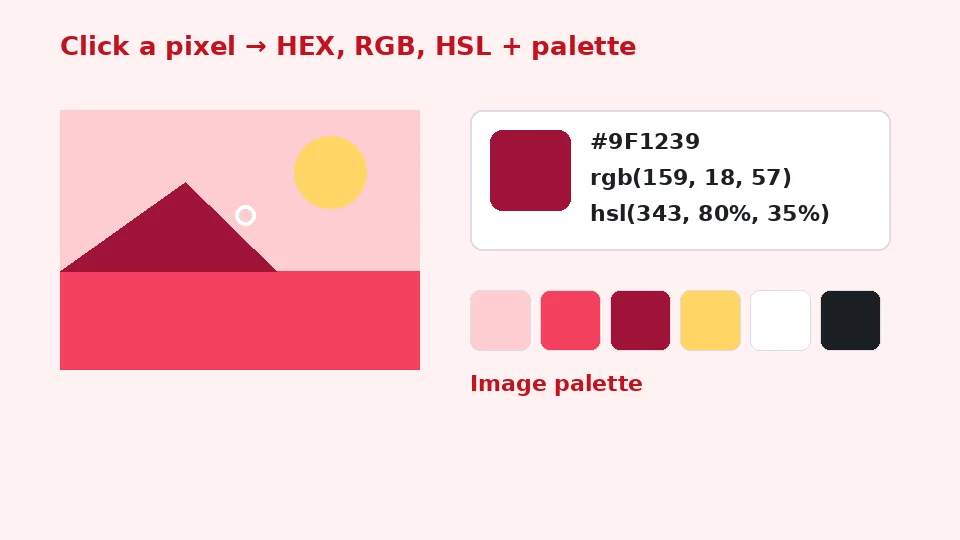
Add an image by dragging it onto the box, browsing, or pasting a screenshot. Move the pointer over the picture: the colour under it is shown live below. Click to pick it. The picked colour appears with a large swatch and its HEX, RGB and HSL codes, each with its own copy button.
Every pick is added to a short history, so you can collect several colours from one picture and copy them later. Click any swatch in the history to show its codes again.
Copying a code
To get the HEX code from an image quickly, zoom your browser in if the area is small, click the exact pixel and press Copy HEX. The code starts with a hash sign and works directly in CSS, Figma, Canva and most other tools.
Extracting a colour palette
As soon as you add a picture, the tool analyses a small copy and finds its dominant colours using a clustering method. Up to eight colours appear, sorted by how much of the picture they cover. Click any of them to see the full codes, or copy the whole set as a list of HEX values or as CSS custom properties ready to paste into a stylesheet.
A palette generator from a photo is a quick way to build a colour scheme that already looks harmonious, because the colours come from a real scene: a sunset, a forest or a well-designed room.
Working from logos
To find brand colours from a logo, use the original file rather than a screenshot or a compressed copy, which may slightly shift colours. Pick the flat areas of the logo rather than the edges, where colours blend into the background.
Pick colours from anywhere on your screen
Chrome, Edge and other Chromium browsers on computers support a screen eyedropper. Press Pick a colour from anywhere on screen, and the pointer becomes a magnifier you can move over any window, including other apps. Click to pick or press Escape to cancel. This is a handy color picker for the screen when the colour you need is in a video, a design app or a website.
Firefox and Safari do not offer this feature yet, so the button is hidden there and you can pick from an uploaded image instead. On phones, use a screenshot: take it, then paste or choose it here.
Accuracy tips
Photos vs flat graphics
Photos contain noise and gradients, so neighbouring pixels can differ slightly. For a representative colour from a photo, the palette is often better than a single pixel because it averages similar pixels together. For logos and flat graphics, a single click is exact.
Colour profiles and screens
The codes come from the image data as your browser decodes it. Very wide-gamut images can look slightly different on different screens, but the codes are what you need to reproduce the colour in web and design tools.
Compressed images
Heavily compressed JPEGs create blocky artefacts around edges. Pick from the middle of a flat area, or use a higher-quality version of the image when one is available.
Privacy and formats
Your image stays in your browser memory; nothing is uploaded, logged or stored. JPG, PNG, WebP, GIF and BMP files are supported, and transparent areas are ignored when building the palette.
The tool is free and unlimited, adds no watermark and does not use EnhancerPro credits. If you want to turn a picked palette into a logo or icon, our favicon generator and image to SVG converter are good next steps.
Using colours in CSS
Paste HEX codes straight into colour properties, or copy the palette as CSS variables and reference them with var(--color-1). HSL values make it easy to create lighter tints by raising the lightness percentage.
Building a colour scheme
Start from one strong colour
Most good schemes start with a single main colour, often taken from a logo or a key photo. Pick it here, then decide on a light and a dark neutral for backgrounds and text. Using HSL makes this easy: keep the hue and saturation, then raise the lightness for a background tint or lower it for a deep accent.
Supporting colours from the palette
The extracted palette usually contains one or two vivid colours and several muted ones. The muted colours work well for backgrounds, borders and secondary buttons, while the vivid ones suit calls to action and highlights. Because they come from the same picture, they tend to sit together naturally.
Check contrast
Text must be readable for everyone. Dark text on a light tint, or white text on a deep colour, usually works. Check important combinations with a contrast checker before you publish, especially for buttons and small text. A colour that looks bold in a photo can be too light for text on a white page.
Keep a record
Save the final codes in a style guide or as CSS variables. Copying the palette as CSS custom properties gives you a ready starting point that you can rename, such as primary, accent and surface, so every page of your site uses exactly the same shades.
Colours for print
Screen colours use RGB, while printers use CMYK inks. The codes here are perfect for screens; for printed material, ask your printer to convert them or to match a printed swatch, because some bright screen colours cannot be printed exactly.
Sharing colours with a team
Designers, developers and clients often describe colours in different ways: a hex code in a design file, an RGB value in a slide deck, an HSL value in a stylesheet. Copying all three from the same pick avoids small mismatches that creep in when values are converted by hand. Paste the codes into your project notes alongside the source image, so anyone can see where each colour came from and pick it again later if the palette needs adjusting.
Seasonal and mood palettes
Photos are a great source of mood. Warm autumn leaves give oranges and deep reds, a beach scene gives sandy neutrals and turquoise, and a city at night gives deep blues with neon accents. Try extracting palettes from several pictures that match the feeling you want, then keep the colours that appear again and again. That repeated set usually becomes a strong, coherent scheme.
Frequently asked questions
Related tools
Need sharper, bigger or restored photos?
Our AI tools enhance, upscale and repair images for free on your device, with optional Pro AI processing on credits.