
Upscale an Image to 4K Without Faking the Detail
Turn a small photo into a 4K-wide file for TVs, monitors and wallpapers, with 4× already selected and the maths done for you.
Add a photo
Drop it here, or click to browse.
Free on this device. Nothing is uploaded.
- 4× preselected
- Free on this device
- Real-ESRGAN in Pro
- 16:9 crop guidance
- No watermark
4K is a pixel count, not a quality badge. A 3840 × 2160 frame holds about 8.3 million pixels, and a phone screenshot or a downloaded web image often has a quarter of that or less. This page opens the upscaler with 4× already chosen, explains which source sizes actually reach 4K, and shows how to crop the result to a clean 16:9 frame. Free mode runs on your device and nothing is uploaded. Pro mode uses the Real-ESRGAN model when you need edges and textures that hold up on a large screen.
How to upscale an image to 4K in 4 steps
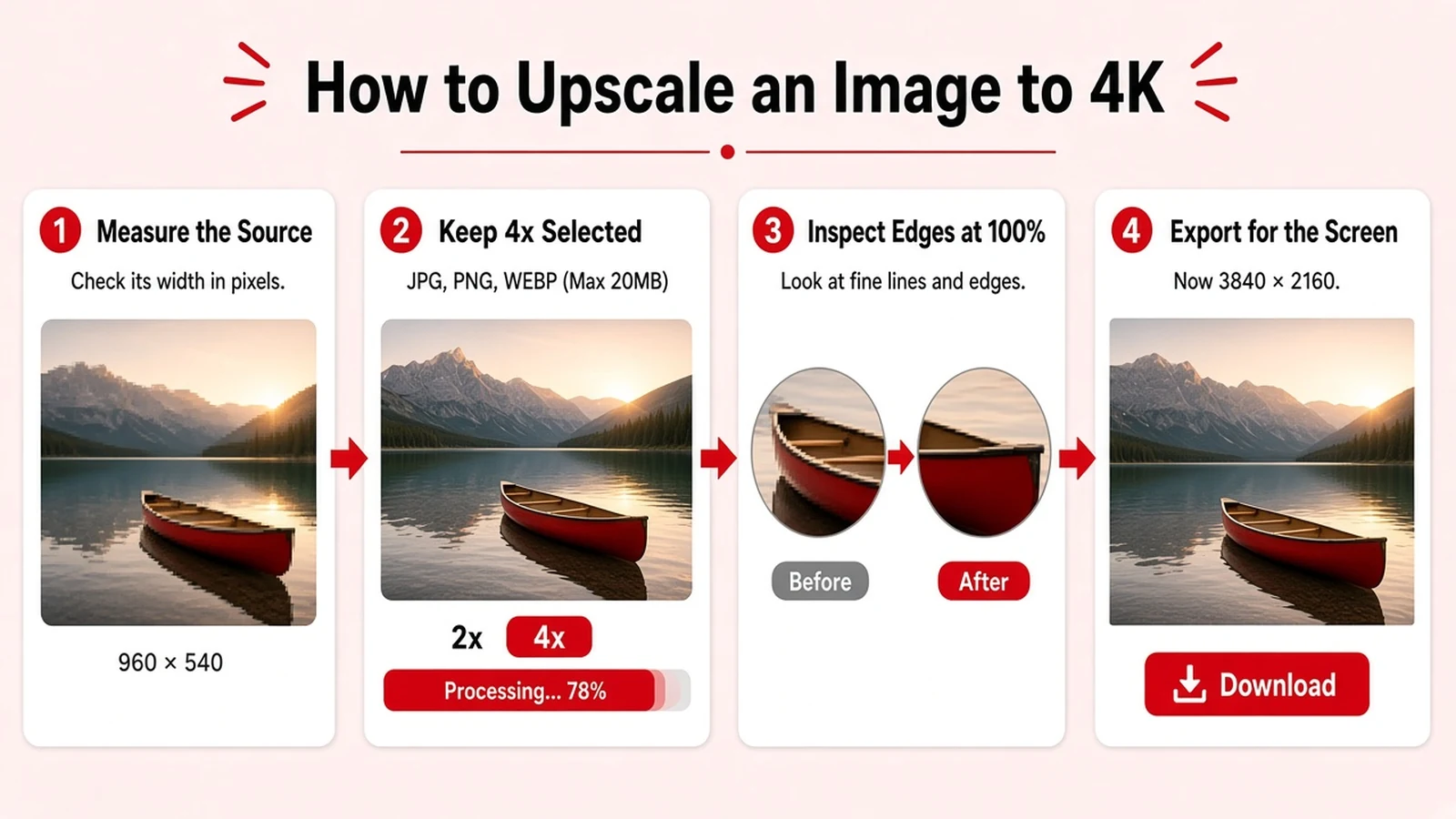
1. Check the starting width
Open the file info. 960 px wide reaches 3840 at 4×; 1920 px only needs 2×.
2. Keep 4× or switch to 2×
Pick the smallest factor that gets you past 3840 px. Bigger factors invent more.
3. Inspect at 100%
Zoom into roof lines, foliage, hair and lettering on a large monitor.
4. Crop to 16:9 and save
Trim to 3840 × 2160 for a wallpaper or TV slide, then download.
What the upscale image to 4K tool does
Starts at 4×
The page loads the upscaler with 4× set, so a 960 × 540 image comes out at 3840 × 2160.
Free resampling
Smooth interpolation with a light sharpen in your browser, unlimited and private.
Real-ESRGAN in Pro
A trained super-resolution model that rebuilds crisper edges than plain resampling.
Honest preview
A before/after slider and 100% view show what was added before you download.
No upload in Free
The photo stays in this tab unless you choose a Pro run.
Clean files
No watermark and no account needed for Free mode.
Who uses it
TV and monitor wallpapers
Fill a 4K desktop or smart-TV screensaver without visible blocks.
Presentation backdrops
Full-bleed slides on large displays and projectors.
Video thumbnails and edits
Stills that sit inside a 4K video timeline without softening.
Digital signage
Menu boards and lobby screens that run at UHD resolution.
Free vs Pro: what you pay for
Free · on this device
No account, no upload
- Unlimited 2× and 4× on this device
- Nothing is uploaded
- Output up to about 8 megapixels
- No watermark, no account
Credits · Pro AI
When the 4K result must look sharp up close
- Pro upscale with Real-ESRGAN: 1 credit per successful run
- Signed out: one free Pro try per browser per day
- Free account: 5 Pro credits every week
- Packs from $4.99 for 60 credits, or Plus at $9.99/month for 300
What "4K" means for a still image
On a television or monitor, 4K almost always means UHD: 3840 pixels across and 2160 down, a 16:9 shape. Cinema projection uses a slightly wider 4096 × 2160 standard called DCI 4K. For photos, wallpapers and slides, 3840 × 2160 is the number that matters, because that is what the screen will display pixel for pixel.
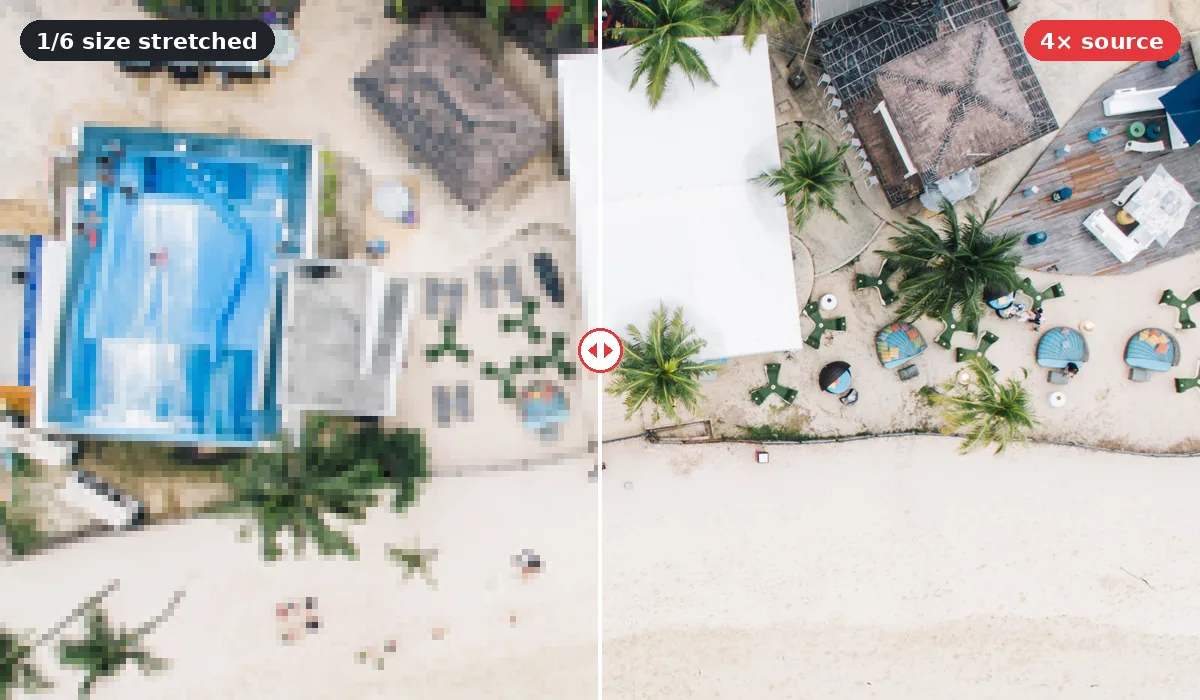
A still image does not need to be exactly that size to look good on a 4K screen, but if it is much smaller the display has to stretch it, and the stretch is visible as soft edges and blocky gradients. Upscaling before you put the picture on the screen lets you control how the extra pixels are made instead of leaving it to the TV.
Common 4K-related sizes
| Name | Pixels | Shape | Where you meet it |
|---|---|---|---|
| UHD 4K | 3840 × 2160 | 16:9 | TVs, monitors, YouTube 2160p |
| DCI 4K | 4096 × 2160 | about 1.9:1 | Cinema projection, some cameras |
| Full HD | 1920 × 1080 | 16:9 | Older TVs, most laptops |
| QHD | 2560 × 1440 | 16:9 | Gaming and office monitors |
Which source sizes reach 4K
Divide 3840 by the width of your image. The answer tells you the factor you need. If it is 2 or less, use 2×. If it is between 2 and 4, use 4× and crop or scale down slightly afterwards. If it is above 4, no upscaler will produce an honest 4K picture, and you will be stretching a thumbnail.
| Starting width | Factor to pass 3840 px | Result width | Verdict |
|---|---|---|---|
| 1920 px (Full HD) | 2× | 3840 px | Ideal: small enlargement |
| 1280 px | 4× (then trim) | 5120 px | Good: scale down to 3840 after |
| 960 px | 4× | 3840 px | Workable for wallpapers |
| 640 px | 4× is not enough | 2560 px | Expect visible softness |
| 400 px | Beyond 4× | 1600 px at 4× | Find a larger original |
Height matters only for the final crop. A square 1080 × 1080 photo upscaled 4× becomes 4320 × 4320, and you would cut a 3840 × 2160 band out of it. Decide which part of the frame you want before you crop, because a square subject rarely fills a wide screen gracefully.
Free mode or Pro for a 4K file
Free mode enlarges the image with high-quality interpolation and a light sharpen. It is fast, unlimited and private, and for photos that are already clean it often looks fine on a TV seen from the sofa. Its weak spot is fine texture: grass, fabric and distant windows can turn smooth and waxy at 4×.
Pro sends the image to Real-ESRGAN, a super-resolution model trained to predict plausible edges and texture. It costs one credit per successful run. The result is usually crisper on lines and foliage, but it is still a prediction, so check text, faces and logos closely.
Quick way to decide
- Use Free for wallpapers, slide backgrounds and anything viewed from a distance.
- Use Pro when the image will be seen up close on a monitor or cropped tightly.
- Use 2× instead of 4× whenever 2× already reaches 3840 px.
- Skip upscaling entirely if you can export a larger copy from the original source.
Making the result look right on a 4K screen
A few habits make a bigger difference than the choice of model.
- Start from the least compressed copy you have. Blocky JPEG artefacts get enlarged along with everything else.
- Crop after upscaling, not before, so you keep the most pixels to work with.
- View the file at 100% on the target screen, or a large monitor, before you call it finished.
- Avoid adding heavy sharpening afterwards; upscaled edges halo quickly.
- Save the 4K copy as a new file and keep the original untouched.
Limits worth knowing
Upscaling cannot recover detail the camera never captured. A face that is ten pixels wide in the source will not become a recognisable portrait at 4K, and small text that is already unreadable will not become readable. For a photo that is blurred rather than small, try the unblur or sharpen tools first, then upscale.
Very large outputs also take memory. If Free mode stops at about 8 megapixels on your device, the result will be a little under a full 3840 × 2160 frame; check the pixel size shown before downloading and crop to fit.
Written and tested by the EnhancerPro team. Last updated 2026-10-14.
Frequently asked questions
Related tools
Try it on your own photo
Start free on this device. Use Pro credits only when a photo needs the AI model, and only pay for runs that succeed.